


Freebie Release: Silver Lining Wallpaper
A storm is brewing. Between the pitchblack view of the ground and the gloomy clouds above, this does not look good. But if you have ever heard of ‘every cloud has a silver lining’, this is the per
Freebies
How To Make A Strong Case For Accessibility
Gaining buy-in for accessibility can be challenging due to common myths and misunderstandings. For many, accessibility remains a big mystery. Here are some practical techniques for winning stakeholder
Accessibility
The Era Of Platform Primitives Is Finally Here
Application frameworks have built whole ecosystems on top of them. Let’s take a closer look at serverless platforms such as Netlify’s Platform Primitives and explore how they can increase our prod
Javascript

Intent Prototyping: A Practical Guide To Building With Clarity (Part 2)
Ready to move beyond static mockups? Here is a practical, step-by-step guide to Intent Prototyping — a disciplined method that uses AI to turn your design intent (UI sketches, conceptual models,
Ux
Intent Prototyping: A Practical Guide To Building With Clarity (Part 2)
Yegor Gilyov
In Part 1 of this series, we explored the “lopsided horse” problem born from mockup-centric design and demonstrated how the seductive promise of vibe coding often leads to structural flaws. The main question remains:
How might we close the gap between our design intent and a live prototype, so that we can iterate on real functionality from day one, without getting caught in the ambiguity trap?
In other words, we need a way to build prototypes that are both fast to create and founded on a clear, unambiguous blueprint.
The answer is a more disciplined process I call Intent Prototyping (kudos to Marco Kotrotsos, who coined Intent-Oriented Programming). This method embraces the power of AI-assisted coding but rejects ambiguity, putting the designer’s explicit intent at the very center of the process. It receives a holistic expression of intent (sketches for screen layouts, conceptual model description, boxes-and-arrows for user flows) and uses it to generate a live, testable prototype.
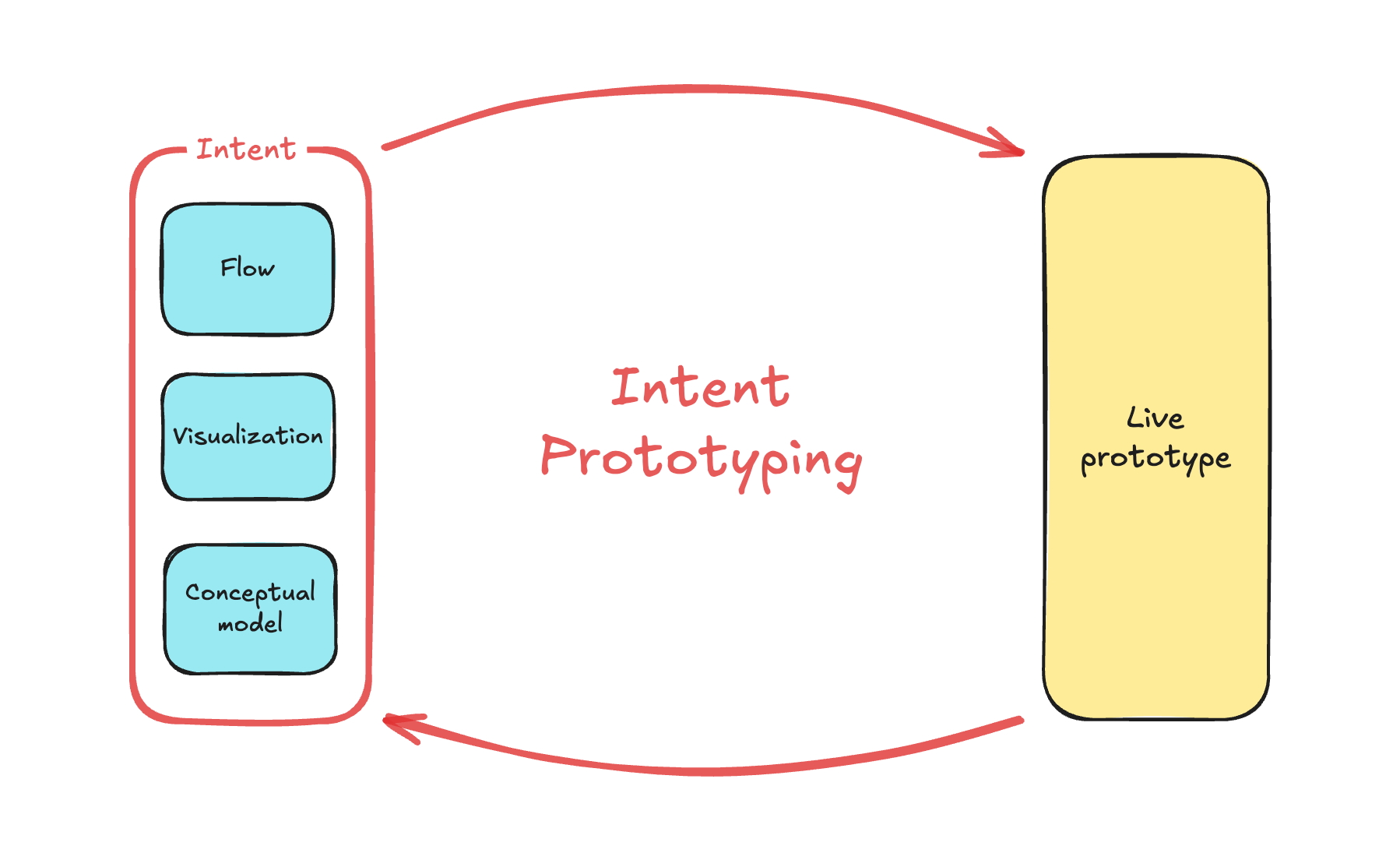
This method solves the concerns we’ve discussed in Part 1 in the best way possible:
- Unlike static mockups, the prototype is fully interactive and can be easily populated with a large amount of realistic data. This lets us test the system’s underlying logic as well as its surface.
- Unlike a vibe-coded prototype, it is built from a stable, unambiguous specification. This prevents the conceptual model failures and design debt that happen when things are unclear. The engineering team doesn’t need to reverse-engineer a black box or become “code archaeologists” to guess at the designer’s vision, as they receive not only a live prototype but also a clearly documented design intent behind it.
This combination makes the method especially suited for designing complex enterprise applications. It allows us to test the system’s most critical point of failure, its underlying structure, at a speed and flexibility that was previously impossible. Furthermore, the process is built for iteration. You can explore as many directions as you want simply by changing the intent and evolving the design based on what you learn from user testing.
My Workflow
To illustrate this process in action, let’s walk through a case study. It’s the very same example I’ve used to illustrate the vibe coding trap: a simple tool to track tests to validate product ideas. You can find the complete project, including all the source code and documentation files discussed below, in this GitHub repository.
Step 1: Expressing An Intent
Imagine we’ve already done proper research, and having mused on the defined problem, I begin to form a vague idea of what the solution might look like. I need to capture this idea immediately, so I quickly sketch it out:
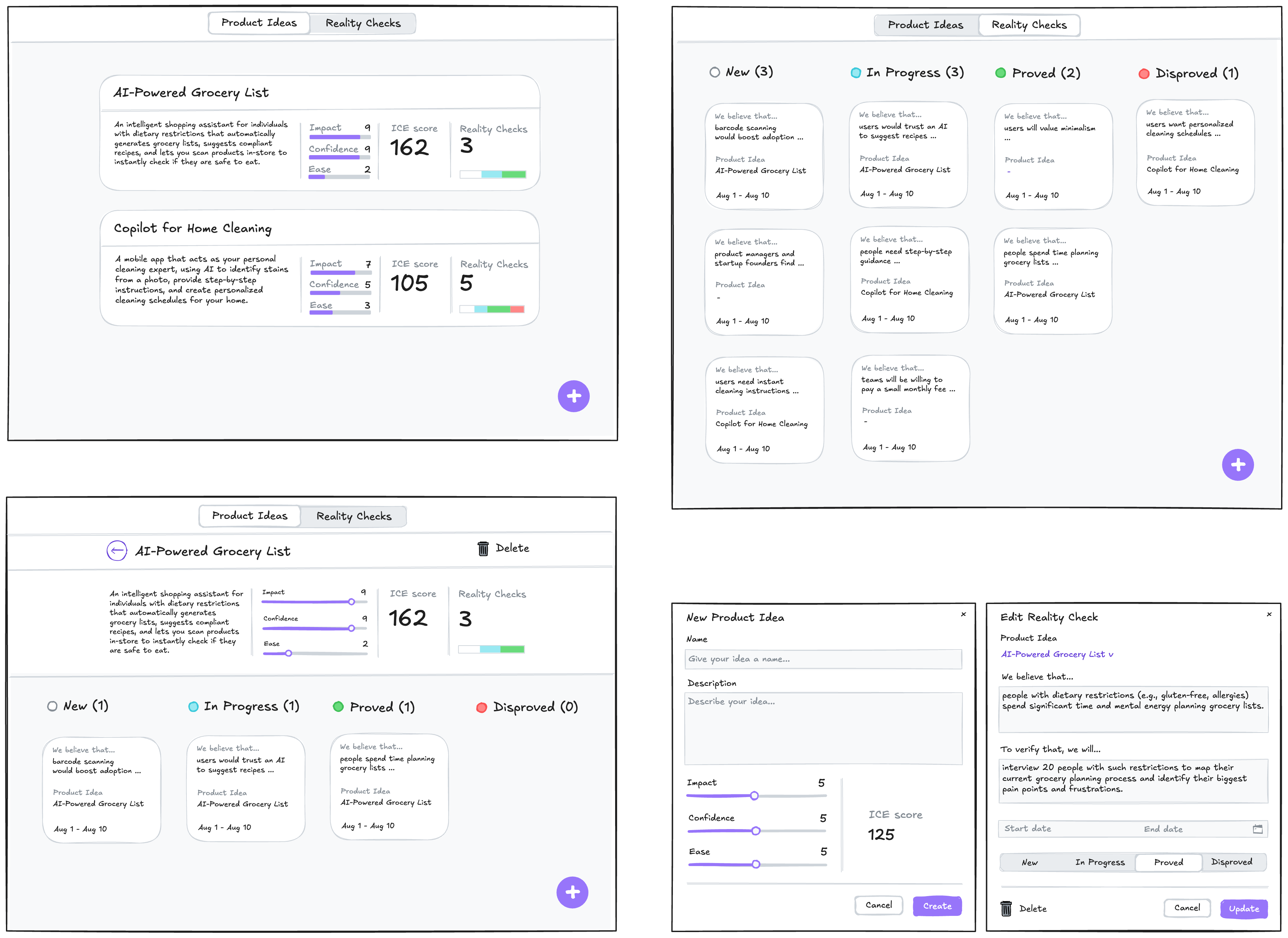
In this example, I used Excalidraw, but the tool doesn’t really matter. Note that we deliberately keep it rough, as visual details are not something we need to focus on at this stage. And we are not going to be stuck here: we want to make a leap from this initial sketch directly to a live prototype that we can put in front of potential users. Polishing those sketches would not bring us any closer to achieving our goal.
What we need to move forward is to add to those sketches just enough details so that they may serve as a sufficient input for a junior frontend developer (or, in our case, an AI assistant). This requires explaining the following:
- Navigational paths (clicking here takes you to).
- Interaction details that can’t be shown in a static picture (e.g., non-scrollable areas, adaptive layout, drag-and-drop behavior).
- What parts might make sense to build as reusable components.
- Which components from the design system (I’m using Ant Design Library) should be used.
- Any other comments that help understand how this thing should work (while sketches illustrate how it should look).
Having added all those details, we end up with such an annotated sketch:
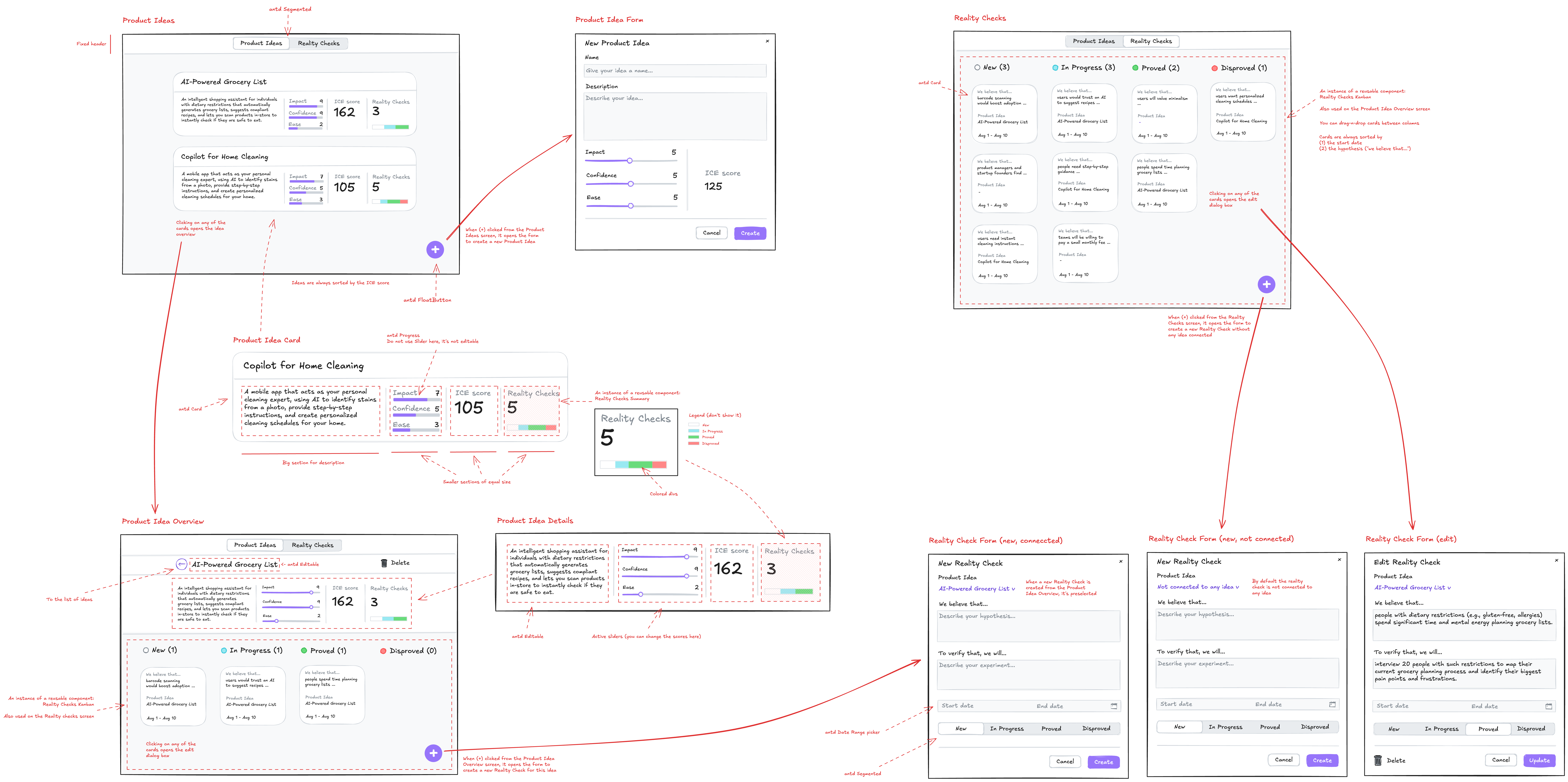
As you see, this sketch covers both the Visualization and Flow aspects. You may ask, what about the Conceptual Model? Without that part, the expression of our intent will not be complete. One way would be to add it somewhere in the margins of the sketch (for example, as a UML Class Diagram), and I would do so in the case of a more complex application, where the model cannot be simply derived from the UI. But in our case, we can save effort and ask an LLM to generate a comprehensive description of the conceptual model based on the sketch.
For tasks of this sort, the LLM of my choice is Gemini 2.5 Pro. What is important is that this is a multimodal model that can accept not only text but also images as input (GPT-5 and Claude-4 also fit that criteria). I use Google AI Studio, as it gives me enough control and visibility into what’s happening:
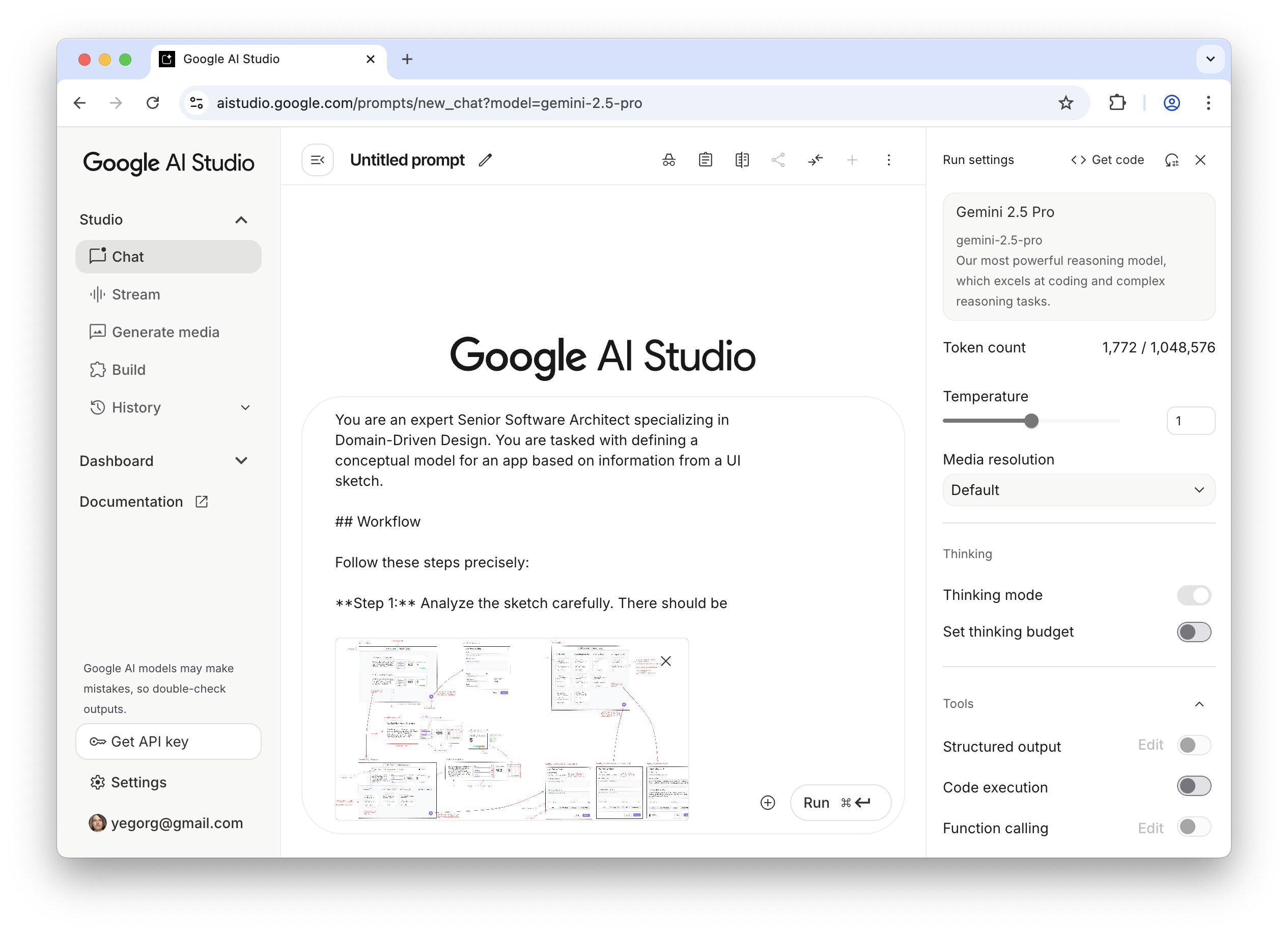
Note: All the prompts that I use here and below can be found in the Appendices. The prompts are not custom-tailored to any particular project; they are supposed to be reused as they are.
As a result, Gemini gives us a description and the following diagram:
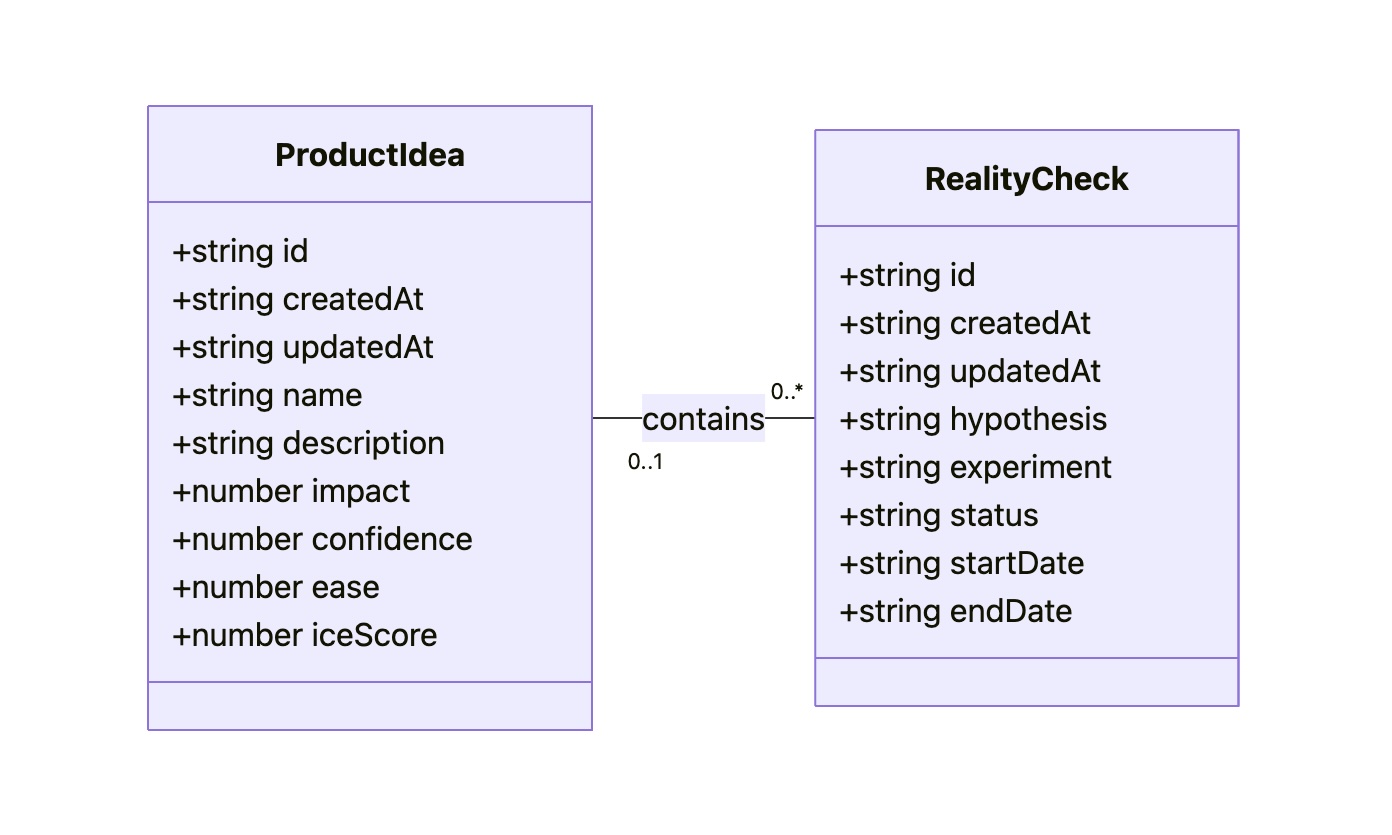
The diagram might look technical, but I believe that a clear understanding of all objects, their attributes, and relationships between them is key to good design. That’s why I consider the Conceptual Model to be an essential part of expressing intent, along with the Flow and Visualization.
As a result of this step, our intent is fully expressed in two files: Sketch.png and Model.md. This will be our durable source of truth.
Step 2: Preparing A Spec And A Plan
The purpose of this step is to create a comprehensive technical specification and a step-by-step plan. Most of the work here is done by AI; you just need to keep an eye on it.
I separate the Data Access Layer and the UI layer, and create specifications for them using two different prompts (see Appendices 2 and 3). The output of the first prompt (the Data Access Layer spec) serves as an input for the second one. Note that, as an additional input, we give the guidelines tailored for prototyping needs (see Appendices 8, 9, and 10). They are not specific to this project. The technical approach encoded in those guidelines is out of the scope of this article.
As a result, Gemini provides us with content for DAL.md and UI.md. Although in most cases this result is quite reliable enough, you might want to scrutinize the output. You don’t need to be a real programmer to make sense of it, but some level of programming literacy would be really helpful. However, even if you don’t have such skills, don’t get discouraged. The good news is that if you don’t understand something, you always know who to ask. Do it in Google AI Studio before refreshing the context window. If you believe you’ve spotted a problem, let Gemini know, and it will either fix it or explain why the suggested approach is actually better.
It’s important to remember that by their nature, LLMs are not deterministic and, to put it simply, can be forgetful about small details, especially when it comes to details in sketches. Fortunately, you don’t have to be an expert to notice that the “Delete” button, which is in the upper right corner of the sketch, is not mentioned in the spec.
Don’t get me wrong: Gemini does a stellar job most of the time, but there are still times when it slips up. Just let it know about the problems you’ve spotted, and everything will be fixed.
Once we have Sketch.png, Model.md, DAL.md, UI.md, and we have reviewed the specs, we can grab a coffee. We deserve it: our technical design documentation is complete. It will serve as a stable foundation for building the actual thing, without deviating from our original intent, and ensuring that all components fit together perfectly, and all layers are stacked correctly.
One last thing we can do before moving on to the next steps is to prepare a step-by-step plan. We split that plan into two parts: one for the Data Access Layer and another for the UI. You can find prompts I use to create such a plan in Appendices 4 and 5.
Step 3: Executing The Plan
To start building the actual thing, we need to switch to another category of AI tools. Up until this point, we have relied on Generative AI. It excels at creating new content (in our case, specifications and plans) based on a single prompt. I’m using Google Gemini 2.5 Pro in Google AI Studio, but other similar tools may also fit such one-off tasks: ChatGPT, Claude, Grok, and DeepSeek.
However, at this step, this wouldn’t be enough. Building a prototype based on specs and according to a plan requires an AI that can read context from multiple files, execute a sequence of tasks, and maintain coherence. A simple generative AI can’t do this. It would be like asking a person to build a house by only ever showing them a single brick. What we need is an agentic AI that can be given the full house blueprint and a project plan, and then get to work building the foundation, framing the walls, and adding the roof in the correct sequence.
My coding agent of choice is Google Gemini CLI, simply because Gemini 2.5 Pro serves me well, and I don’t think we need any middleman like Cursor or Windsurf (which would use Claude, Gemini, or GPT under the hood anyway). If I used Claude, my choice would be Claude Code, but since I’m sticking with Gemini, Gemini CLI it is. But if you prefer Cursor or Windsurf, I believe you can apply the same process with your favourite tool.
Before tasking the agent, we need to create a basic template for our React application. I won’t go into this here. You can find plenty of tutorials on how to scaffold an empty React project using Vite.
Then we put all our files into that project:
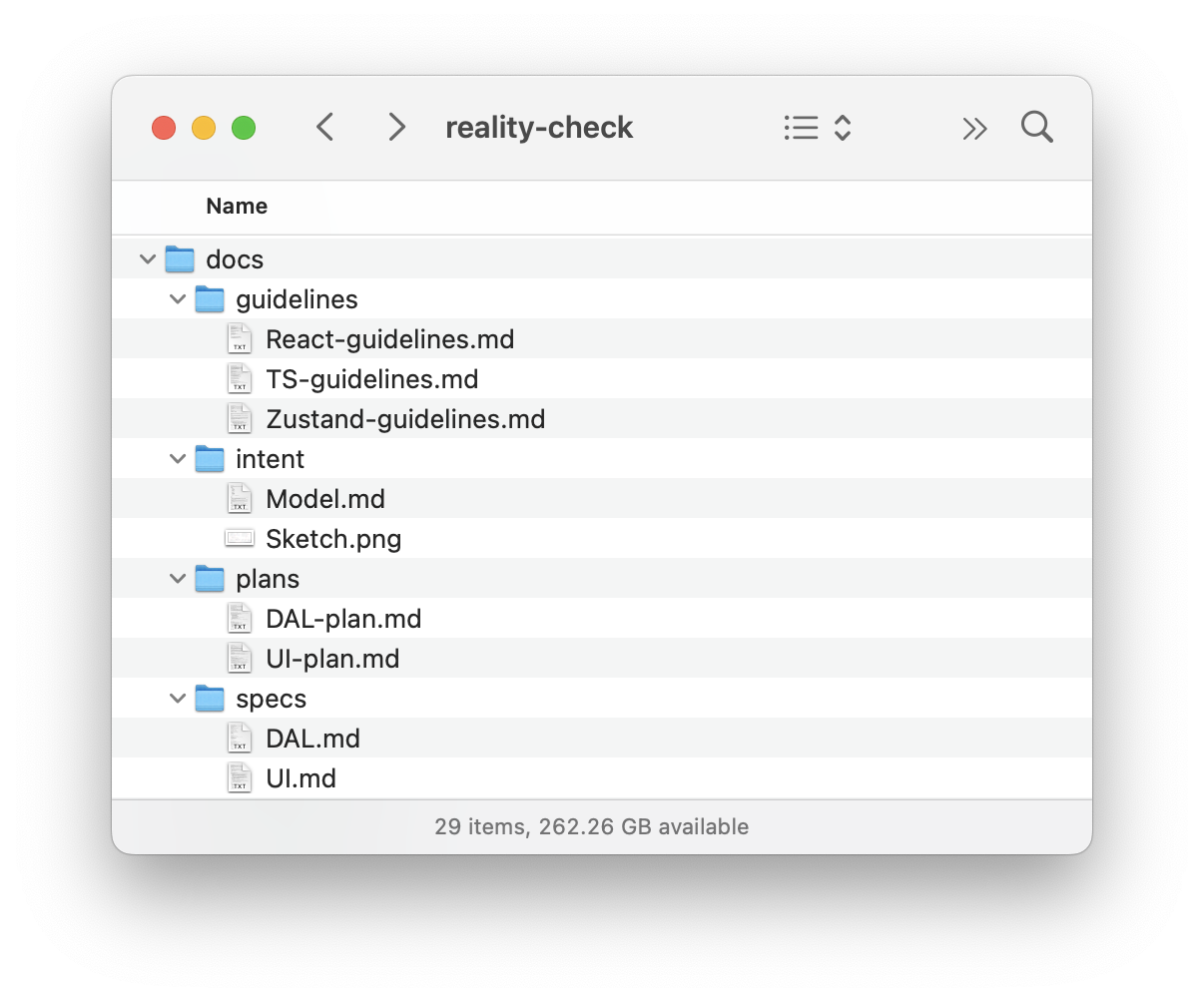
Once the basic template with all our files is ready, we open Terminal, go to the folder where our project resides, and type “gemini”:
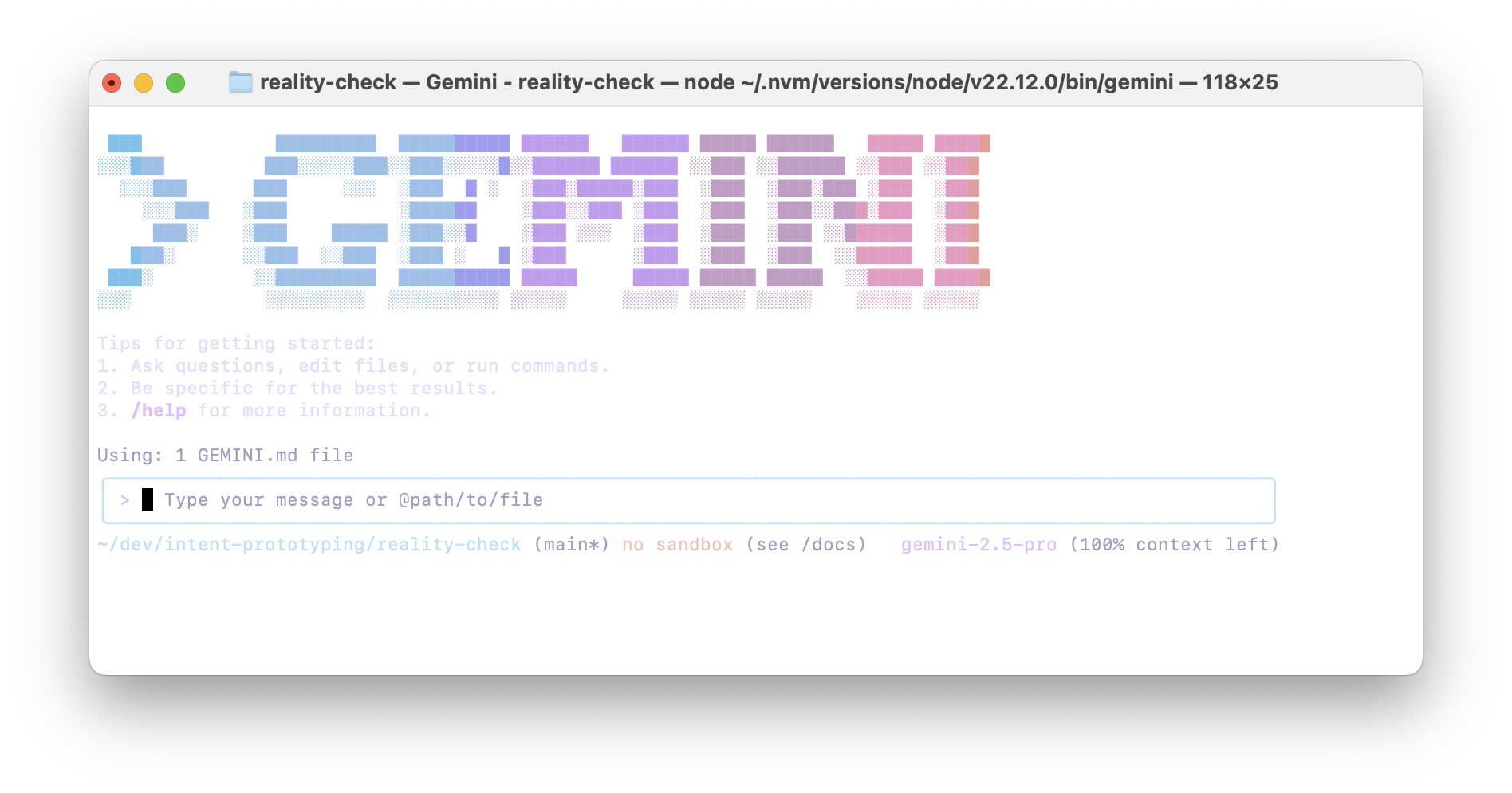
And we send the prompt to build the Data Access Layer (see Appendix 6). That prompt implies step-by-step execution, so upon completion of each step, I send the following:
Thank you! Now, please move to the next task. Remember that you must not make assumptions based on common patterns; always verify them with the actual data from the spec. After each task, stop so that I can test it. Don’t move to the next task before I tell you to do so. As the last task in the plan, the agent builds a special page where we can test all the capabilities of our Data Access Layer, so that we can manually test it. It may look like this:
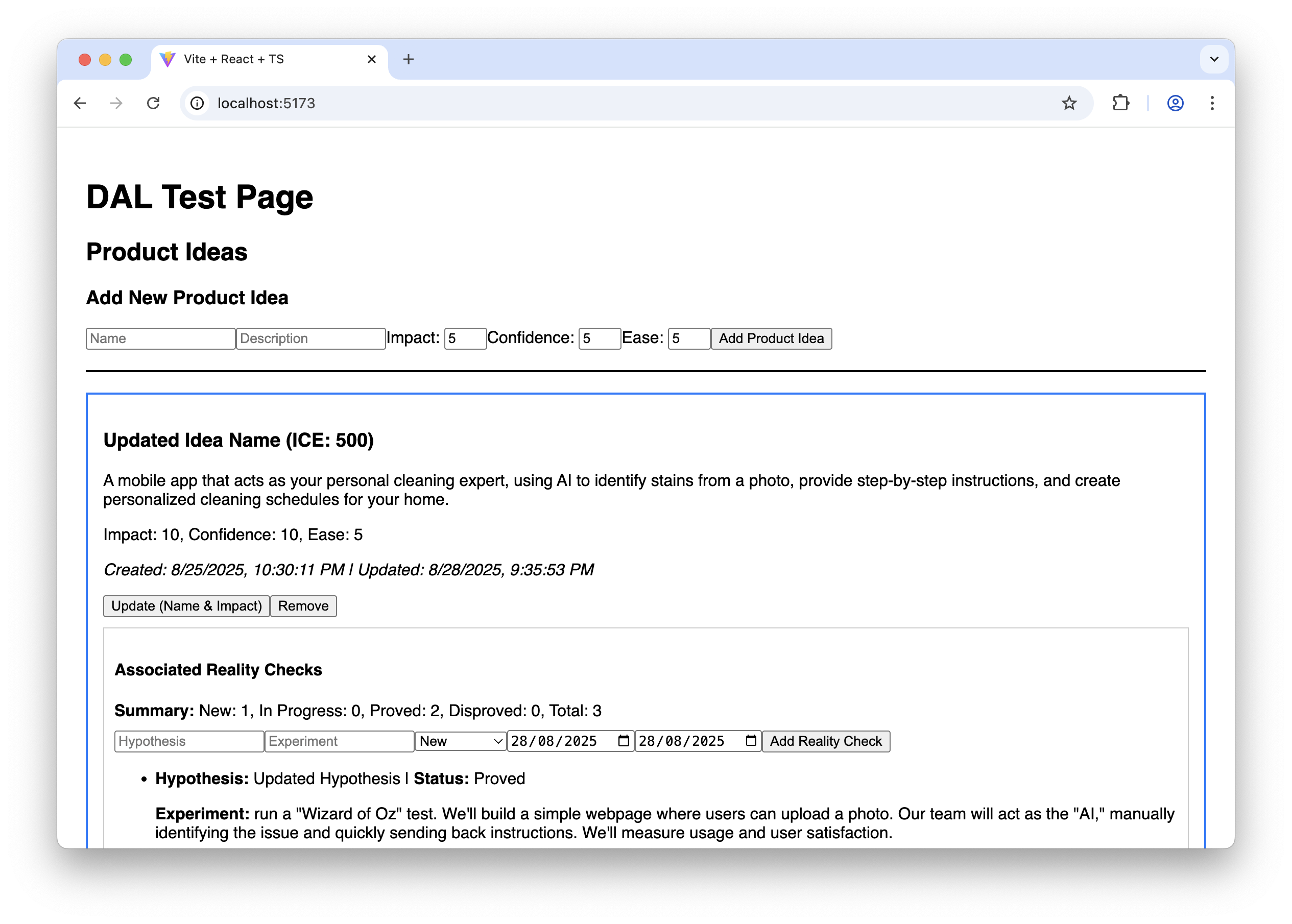
It doesn’t look fancy, to say the least, but it allows us to ensure that the Data Access Layer works correctly before we proceed with building the final UI.
And finally, we clear the Gemini CLI context window to give it more headspace and send the prompt to build the UI (see Appendix 7). This prompt also implies step-by-step execution. Upon completion of each step, we test how it works and how it looks, following the “Manual Testing Plan” from UI-plan.md. I have to say that despite the fact that the sketch has been uploaded to the model context and, in general, Gemini tries to follow it, attention to visual detail is not one of its strengths (yet). Usually, a few additional nudges are needed at each step to improve the look and feel:
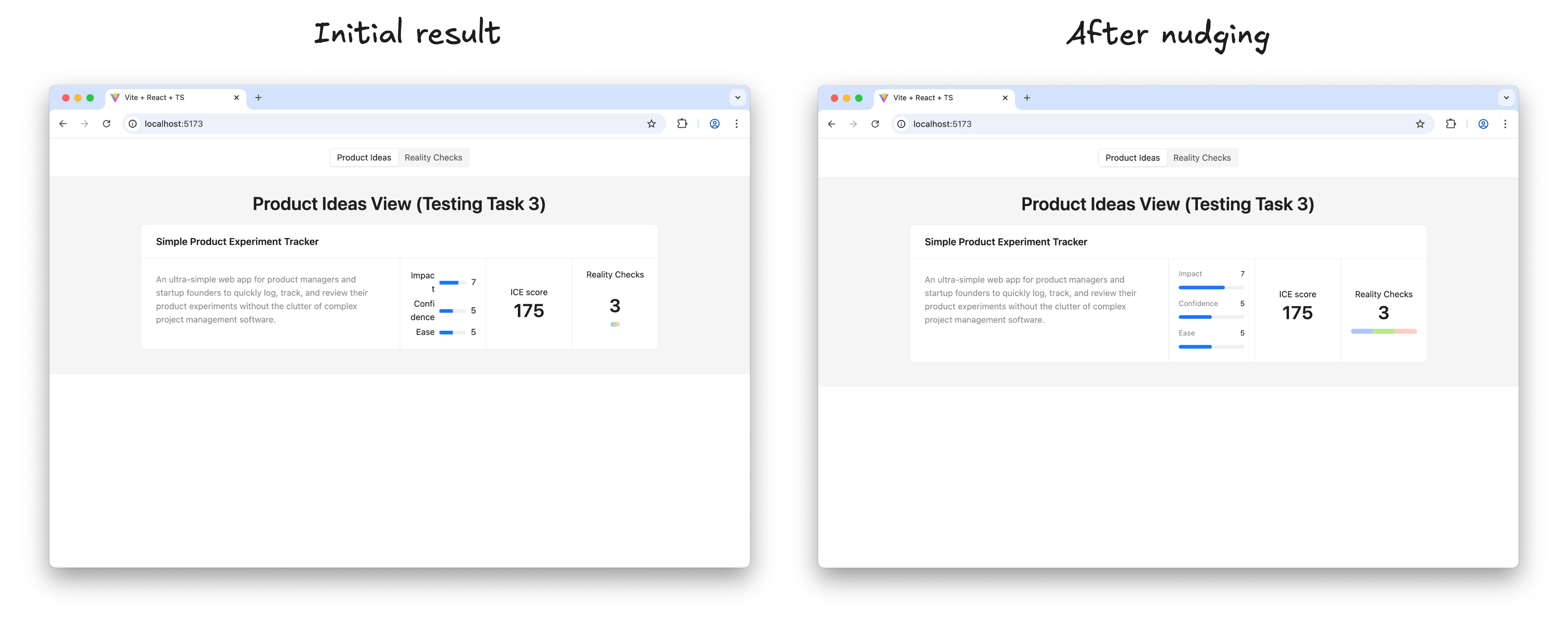
Once I’m happy with the result of a step, I ask Gemini to move on:
Thank you! Now, please move to the next task. Make sure you build the UI according to the sketch; this is very important. Remember that you must not make assumptions based on common patterns; always verify them with the actual data from the spec and the sketch. After each task, stop so that I can test it. Don’t move to the next task before I tell you to do so. Before long, the result looks like this, and in every detail it works exactly as we intended:
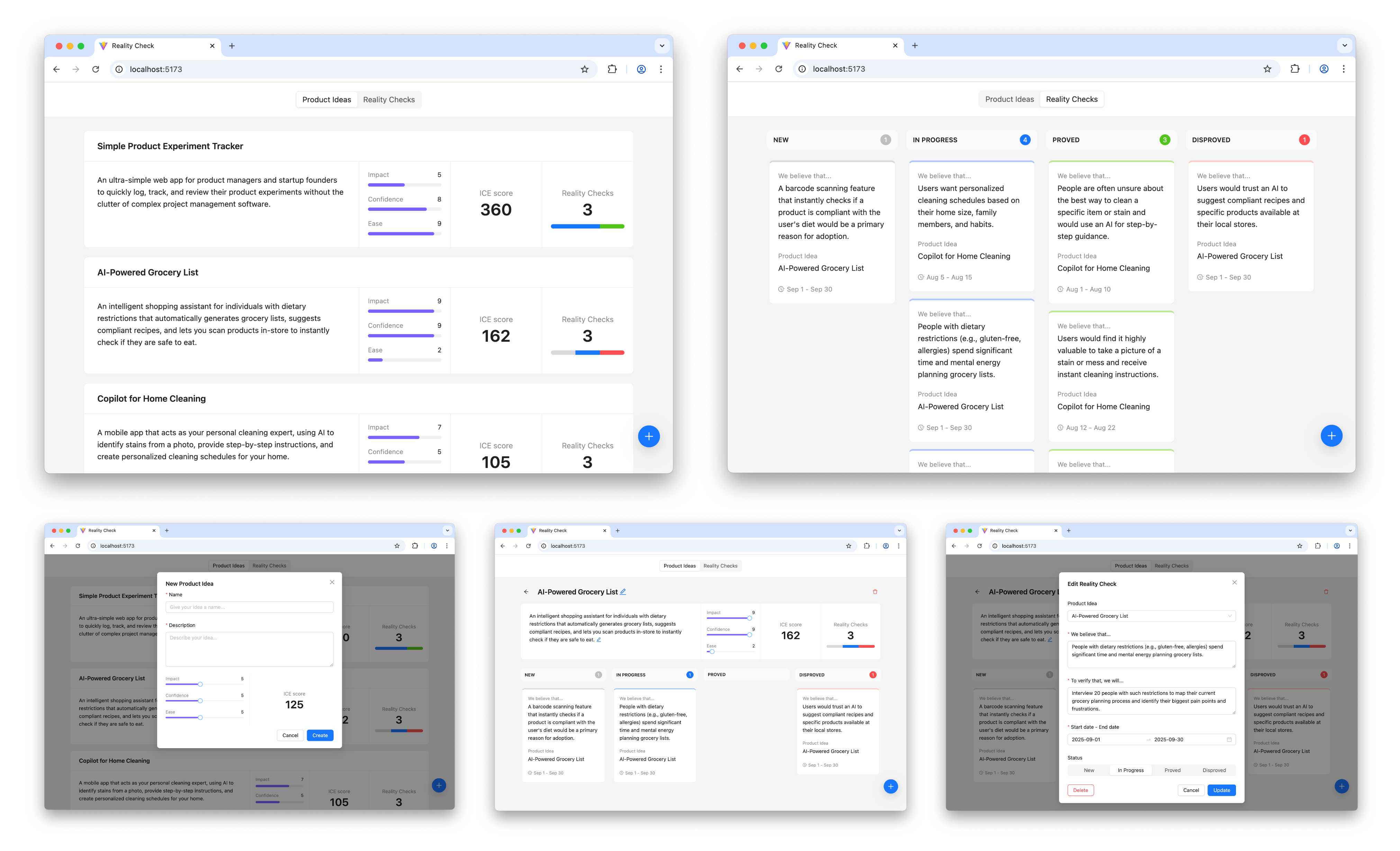
The prototype is up and running and looking nice. Does it mean that we are done with our work? Surely not, the most fascinating part is just beginning.
Step 4: Learning And Iterating
It’s time to put the prototype in front of potential users and learn more about whether this solution relieves their pain or not.
And as soon as we learn something new, we iterate. We adjust or extend the sketches and the conceptual model, based on that new input, we update the specifications, create plans to make changes according to the new specifications, and execute those plans. In other words, for every iteration, we repeat the steps I’ve just walked you through.
Is This Workflow Too Heavy?
This four-step workflow may create an impression of a somewhat heavy process that requires too much thinking upfront and doesn’t really facilitate creativity. But before jumping to that conclusion, consider the following:
- In practice, only the first step requires real effort, as well as learning in the last step. AI does most of the work in between; you just need to keep an eye on it.
- Individual iterations don’t need to be big. You can start with a Walking Skeleton: the bare minimum implementation of the thing you have in mind, and add more substance in subsequent iterations. You are welcome to change your mind about the overall direction in between iterations.
- And last but not least, maybe the idea of “think before you do” is not something you need to run away from. A clear and unambiguous statement of intent can prevent many unnecessary mistakes and save a lot of effort down the road.
Intent Prototyping Vs. Other Methods
There is no method that fits all situations, and Intent Prototyping is not an exception. Like any specialized tool, it has a specific purpose. The most effective teams are not those who master a single method, but those who understand which approach to use to mitigate the most significant risk at each stage. The table below gives you a way to make this choice clearer. It puts Intent Prototyping next to other common methods and tools and explains each one in terms of the primary goal it helps achieve and the specific risks it is best suited to mitigate.
| Method/Tool | Goal | Risks it is best suited to mitigate | Examples | Why |
|---|---|---|---|---|
| Intent Prototyping | To rapidly iterate on the fundamental architecture of a data-heavy application with a complex conceptual model, sophisticated business logic, and non-linear user flows. | Building a system with a flawed or incoherent conceptual model, leading to critical bugs and costly refactoring. |
|
It enforces conceptual clarity. This not only de-risks the core structure but also produces a clear, documented blueprint that serves as a superior specification for the engineering handoff. |
| Vibe Coding (Conversational) | To rapidly explore interactive ideas through improvisation. | Losing momentum because of analysis paralysis. |
|
It has the smallest loop between an idea conveyed in natural language and an interactive outcome. |
| Axure | To test complicated conditional logic within a specific user journey, without having to worry about how the whole system works. | Designing flows that break when users don’t follow the “happy path.” |
|
It’s made to create complex if-then logic and manage variables visually. This lets you test complicated paths and edge cases in a user journey without writing any code. |
| Figma | To make sure that the user interface looks good, aligns with the brand, and has a clear information architecture. | Making a product that looks bad, doesn’t fit with the brand, or has a layout that is hard to understand. |
|
It excels at high-fidelity visual design and provides simple, fast tools for linking static screens. |
| ProtoPie, Framer | To make high-fidelity micro-interactions feel just right. | Shipping an application that feels cumbersome and unpleasant to use because of poorly executed interactions. |
|
These tools let you manipulate animation timelines, physics, and device sensor inputs in great detail. Designers can carefully work on and test the small things that make an interface feel really polished and fun to use. |
| Low-code / No-code Tools (e.g., Bubble, Retool) | To create a working, data-driven app as quickly as possible. | The application will never be built because traditional development is too expensive. |
|
They put a UI builder, a database, and hosting all in one place. The goal is not merely to make a prototype of an idea, but to make and release an actual, working product. This is the last step for many internal tools or MVPs. |
The key takeaway is that each method is a specialized tool for mitigating a specific type of risk. For example, Figma de-risks the visual presentation. ProtoPie de-risks the feel of an interaction. Intent Prototyping is in a unique position to tackle the most foundational risk in complex applications: building on a flawed or incoherent conceptual model.
Bringing It All Together
The era of the “lopsided horse” design, sleek on the surface but structurally unsound, is a direct result of the trade-off between fidelity and flexibility. This trade-off has led to a process filled with redundant effort and misplaced focus. Intent Prototyping, powered by modern AI, eliminates that conflict. It’s not just a shortcut to building faster — it’s a fundamental shift in how we design. By putting a clear, unambiguous intent at the heart of the process, it lets us get rid of the redundant work and focus on architecting a sound and robust system.
There are three major benefits to this renewed focus. First, by going straight to live, interactive prototypes, we shift our validation efforts from the surface to the deep, testing the system’s actual logic with users from day one. Second, the very act of documenting the design intent makes us clear about our ideas, ensuring that we fully understand the system’s underlying logic. Finally, this documented intent becomes a durable source of truth, eliminating the ambiguous handoffs and the redundant, error-prone work of having engineers reverse-engineer a designer’s vision from a black box.
Ultimately, Intent Prototyping changes the object of our work. It allows us to move beyond creating pictures of a product and empowers us to become architects of blueprints for a system. With the help of AI, we can finally make the live prototype the primary canvas for ideation, not just a high-effort afterthought.
Appendices
You can find the full Intent Prototyping Starter Kit, which includes all those prompts and guidelines, as well as the example from this article and a minimal boilerplate project, in this GitHub repository.
-
Appendix 1: Sketch to UML Class Diagram
-
Appendix 2: Sketch to DAL Spec
-
Appendix 3: Sketch to UI Spec
-
Appendix 4: DAL Spec to Plan
-
Appendix 5: UI Spec to Plan
-
Appendix 6: DAL Plan to Code
-
Appendix 7: UI Plan to Code
-
Appendix 8: TS-guidelines.md
-
Appendix 9: React-guidelines.md
-
Appendix 10: Zustand-guidelines.md
 (yk)
(yk)

Build A Static RSS Reader To Fight Your Inner FOMO
RSS is a classic technology that fetches content from websites and feeds it to anyone who subscribes to it with a URL. It’s based on XML, and we can use it to consume the feeds in our own apps. Kari
Javascript
Build A Static RSS Reader To Fight Your Inner FOMO
Karin Hendrikse
In a fast-paced industry like tech, it can be hard to deal with the fear of missing out on important news. But, as many of us know, there’s an absolutely huge amount of information coming in daily, and finding the right time and balance to keep up can be difficult, if not stressful. A classic piece of technology like an RSS feed is a delightful way of taking back ownership of our own time. In this article, we will create a static Really Simple Syndication (RSS) reader that will bring you the latest curated news only once (yes: once) a day.
We’ll obviously work with RSS technology in the process, but we’re also going to combine it with some things that maybe you haven’t tried before, including Astro (the static site framework), TypeScript (for JavaScript goodies), a package called rss-parser (for connecting things together), as well as scheduled functions and build hooks provided by Netlify (although there are other services that do this).
I chose these technologies purely because I really, really enjoy them! There may be other solutions out there that are more performant, come with more features, or are simply more comfortable to you — and in those cases, I encourage you to swap in whatever you’d like. The most important thing is getting the end result!
The Plan
Here’s how this will go. Astro generates the website. I made the intentional decision to use a static site because I want the different RSS feeds to be fetched only once during build time, and that’s something we can control each time the site is “rebuilt” and redeployed with updates. That’s where Netlify’s scheduled functions come into play, as they let us trigger rebuilds automatically at specific times. There is no need to manually check for updates and deploy them! Cron jobs can just as readily do this if you prefer a server-side solution.
During the triggered rebuild, we’ll let the rss-parser package do exactly what it says it does: parse a list of RSS feeds that are contained in an array. The package also allows us to set a filter for the fetched results so that we only get ones from the past day, week, and so on. Personally, I only render the news from the last seven days to prevent content overload. We’ll get there!
But first…
What Is RSS?
RSS is a web feed technology that you can feed into a reader or news aggregator. Because RSS is standardized, you know what to expect when it comes to the feed’s format. That means we have a ton of fun possibilities when it comes to handling the data that the feed provides. Most news websites have their own RSS feed that you can subscribe to (this is Smashing Magazine’s RSS feed: https://www.smashingmagazine.com/feed/). An RSS feed is capable of updating every time a site publishes new content, which means it can be a quick source of the latest news, but we can tailor that frequency as well.
RSS feeds are written in an Extensible Markup Language (XML) format and have specific elements that can be used within it. Instead of focusing too much on the technicalities here, I’ll give you a link to the RSS specification. Don’t worry; that page should be scannable enough for you to find the most pertinent information you need, like the kinds of elements that are supported and what they represent. For this tutorial, we’re only using the following elements: <title>, <link>, <description>, <item>, and <pubDate>. We’ll also let our RSS parser package do some of the work for us.
Creating The State Site
We’ll start by creating our Astro site! In your terminal run pnpm create astro@latest. You can use any package manager you want — I’m simply trying out pnpm for myself.
After running the command, Astro’s chat-based helper, Houston, walks through some setup questions to get things started.
astro Launch sequence initiated. dir Where should we create your new project? ./rss-buddy tmpl How would you like to start your new project? Include sample files ts Do you plan to write TypeScript? Yes use How strict should TypeScript be? Strict deps Install dependencies? Yes git Initialize a new git repository? Yes I like to use Astro’s sample files so I can get started quickly, but we’re going to clean them up a bit in the process. Let’s clean up the src/pages/index.astro file by removing everything inside of the <main></main> tags. Then we’re good to go!
From there, we can spin things by running pnpm start. Your terminal will tell you which localhost address you can find your site at.
Pulling Information From RSS feeds
The src/pages/index.astro file is where we will make an array of RSS feeds we want to follow. We will be using Astro’s template syntax, so between the two code fences (—), create an array of feedSources and add some feeds. If you need inspiration, you can copy this:
const feedSources = [ 'https://www.smashingmagazine.com/feed/', 'https://developer.mozilla.org/en-US/blog/rss.xml', // etc. ] Now we’ll install the rss-parser package in our project by running pnpm install rss-parser. This package is a small library that turns the XML that we get from fetching an RSS feed into JavaScript objects. This makes it easy for us to read our RSS feeds and manipulate the data any way we want.
Once the package is installed, open the src/pages/index.astro file, and at the top, we’ll import the rss-parser and instantiate the Partner class.
import Parser from 'rss-parser'; const parser = new Parser(); We use this parser to read our RSS feeds and (surprise!) parse them to JavaScript. We’re going to be dealing with a list of promises here. Normally, I would probably use Promise.all(), but the thing is, this is supposed to be a complicated experience. If one of the feeds doesn’t work for some reason, I’d prefer to simply ignore it.
Why? Well, because Promise.all() rejects everything even if only one of its promises is rejected. That might mean that if one feed doesn’t behave the way I’d expect it to, my entire page would be blank when I grab my hot beverage to read the news in the morning. I do not want to start my day confronted by an error.
Instead, I’ll opt to use Promise.allSettled(). This method will actually let all promises complete even if one of them fails. In our case, this means any feed that errors will just be ignored, which is perfect.
Let’s add this to the src/pages/index.astro file:
interface FeedItem { feed?: string; title?: string; link?: string; date?: Date; } const feedItems: FeedItem[] = []; await Promise.allSettled( feedSources.map(async (source) => { try { const feed = await parser.parseURL(source); feed.items.forEach((item) => { const date = item.pubDate ? new Date(item.pubDate) : undefined; feedItems.push({ feed: feed.title, title: item.title, link: item.link, date, }); }); } catch (error) { console.error(`Error fetching feed from ${source}:`, error); } }) ); This creates an array (or more) named feedItems. For each URL in the feedSources array we created earlier, the rss-parser retrieves the items and, yes, parses them into JavaScript. Then, we return whatever data we want! We’ll keep it simple for now and only return the following:
- The feed title,
- The title of the feed item,
- The link to the item,
- And the item’s published date.
The next step is to ensure that all items are sorted by date so we’ll truly get the “latest” news. Add this small piece of code to our work:
const sortedFeedItems = feedItems.sort((a, b) => (b.date ?? new Date()).getTime() - (a.date ?? new Date()).getTime()); Oh, and… remember when I said I didn’t want this RSS reader to render anything older than seven days? Let’s tackle that right now since we’re already in this code.
We’ll make a new variable called sevenDaysAgo and assign it a date. We’ll then set that date to seven days ago and use that logic before we add a new item to our feedItems array.
This is what the src/pages/index.astro file should now look like at this point:
--- import Layout from '../layouts/Layout.astro'; import Parser from 'rss-parser'; const parser = new Parser(); const sevenDaysAgo = new Date(); sevenDaysAgo.setDate(sevenDaysAgo.getDate() - 7); const feedSources = [ 'https://www.smashingmagazine.com/feed/', 'https://developer.mozilla.org/en-US/blog/rss.xml', ] interface FeedItem { feed?: string; title?: string; link?: string; date?: Date; } const feedItems: FeedItem[] = []; await Promise.allSettled( feedSources.map(async (source) => { try { const feed = await parser.parseURL(source); feed.items.forEach((item) => { const date = item.pubDate ? new Date(item.pubDate) : undefined; if (date && date >= sevenDaysAgo) { feedItems.push({ feed: feed.title, title: item.title, link: item.link, date, }); } }); } catch (error) { console.error(`Error fetching feed from ${source}:`, error); } }) ); const sortedFeedItems = feedItems.sort((a, b) => (b.date ?? new Date()).getTime() - (a.date ?? new Date()).getTime()); --- <Layout title="Welcome to Astro."> <main> </main> </Layout> Rendering XML Data
It’s time to show our news articles on the Astro site! To keep this simple, we’ll format the items in an unordered list rather than some other fancy layout.
All we need to do is update the <Layout> element in the file with the XML objects sprinkled in for a feed item’s title, URL, and publish date.
<Layout title="Welcome to Astro."> <main> {sortedFeedItems.map(item => ( <ul> <li> <a href={item.link}>{item.title}</a> <p>{item.feed}</p> <p>{item.date}</p> </li> </ul> ))} </main> </Layout> Go ahead and run pnpm start from the terminal. The page should display an unordered list of feed items. Of course, everything is styled at the moment, but luckily for you, you can make it look exactly like you want with CSS!
And remember that there are even more fields available in the XML for each item if you want to display more information. If you run the following snippet in your DevTools console, you’ll see all of the fields you have at your disposal:
feed.items.forEach(item => {} Scheduling Daily Static Site Builds
We’re nearly done! The feeds are being fetched, and they are returning data back to us in JavaScript for use in our Astro page template. Since feeds are updated whenever new content is published, we need a way to fetch the latest items from it.
We want to avoid doing any of this manually. So, let’s set this site on Netlify to gain access to their scheduled functions that trigger a rebuild and their build hooks that do the building. Again, other services do this, and you’re welcome to roll this work with another provider — I’m just partial to Netlify since I work there. In any case, you can follow Netlify’s documentation for setting up a new site.
Once your site is hosted and live, you are ready to schedule your rebuilds. A build hook gives you a URL to use to trigger the new build, looking something like this:
https://api.netlify.com/build_hooks/your-build-hook-id Let’s trigger builds every day at midnight. We’ll use Netlify’s scheduled functions. That’s really why I’m using Netlify to host this in the first place. Having them at the ready via the host greatly simplifies things since there’s no server work or complicated configurations to get this going. Set it and forget it!
We’ll install @netlify/functions (instructions) to the project and then create the following file in the project’s root directory: netlify/functions/deploy.ts.
This is what we want to add to that file:
// netlify/functions/deploy.ts import type { Config } from '@netlify/functions'; const BUILD_HOOK = 'https://api.netlify.com/build_hooks/your-build-hook-id'; // replace me! export default async (req: Request) => { await fetch(BUILD_HOOK, { method: 'POST', }) }; export const config: Config = { schedule: '0 0 * * *', }; If you commit your code and push it, your site should re-deploy automatically. From that point on, it follows a schedule that rebuilds the site every day at midnight, ready for you to take your morning brew and catch up on everything that you think is important.
(gg, yk)
Freebie: Flat Jewels Icon Set
We’re back, this time with a gem of a giveaway! Courtesy of Pixelkit, we have here 25 handpicked flat icons to be given away to hongkiat.com readers. Available in a variety of sizes – from 32
FreebiesWe’re back, this time with a gem of a giveaway!
Courtesy of Pixelkit, we have here 25 handpicked flat icons to be given away to hongkiat.com readers. Available in a variety of sizes – from 32×32 to 512×512 – the icons are available in PNG as well as layered PSD files and are scalable vector graphics, easily resizable with no loss in quality, for use.

Download
Please enter your email address below and click the Download Files button. The download link will be sent to you by email.
The post Freebie: Flat Jewels Icon Set appeared first on Hongkiat.
Inclusive Dark Mode: Designing Accessible Dark Themes For All Users
Dark mode isn’t just a trendy aesthetic. It’s a gateway to more inclusive digital experiences, but only if designed thoughtfully. While its sleek visuals and reduced eye strain appeal to many, poo
Accessibility
Inclusive Dark Mode: Designing Accessible Dark Themes For All Users
Alex Williams
Dark mode, a beloved feature in modern digital interfaces, offers a visually striking alternative to traditional light themes. Its allure lies in the striking visual contrast it provides, a departure from the light themes that have dominated our screens for decades.
However, its design often misses the mark on an important element — accessibility. For users with visual impairments or sensitivities, dark mode can introduce significant challenges if not thoughtfully implemented.
Hence, designing themes with these users in mind can improve user comfort in low-light settings while creating a more equitable digital experience for everyone. Let’s take a look at exactly how this can be done.
The Pros And Cons Of Dark Modes In Terms Of Accessibility
Dark mode can offer tangible accessibility benefits when implemented with care. For many users, especially those who experience light sensitivity, a well-calibrated dark theme can reduce eye strain and provide a more comfortable reading experience. In low-light settings, the softer background tones and reduced glare may help lessen fatigue and improve visual focus.
However, these benefits are not universal. For some users, particularly those with conditions such as astigmatism or low contrast sensitivity, dark mode can actually compromise readability. Light text on a dark background may lead to blurred edges or halo effects around characters, making it harder to distinguish content.
The Role Of Contrast In Dark Mode Accessibility
When you’re designing, contrast isn’t just another design element, it’s a key player in dark mode’s overall readability and accessibility. A well-designed dark mode, with the right contrast, can also enhance user engagement, creating a more immersive experience and drawing users into the content.

First and foremost, cleverly executing your site’s dark mode will result in a lower bounce rate (as much as 70%, according to one case study from Brazil). You can then further hack this statistic and greet visitors with a deep black, reinforcing your rankings in organic search results by sending positive signals to Google.
How is this possible? Well, the darker tones can hold attention longer, especially in low-light settings, leading to higher interaction rates while making your design more accessible. The point is, without proper contrast, even the sleekest dark mode design can become difficult to navigate and uncomfortable to use.
Designing For Contrast In Dark Mode
Instead of using pure black backgrounds, which can cause eye strain and make text harder to read, opt for dark grays. These softer tones help reduce harsh contrast and provide a modern look.
However, it’s important to note that color adjustments alone don’t solve technical challenges like anti-aliasing. In dark mode, anti-aliasing has the problem of halo effects, where the edges of the text appear blurred or overly luminous. To mitigate these issues, designers should test their interfaces on various devices and browsers and consider CSS properties to improve text clarity.
Real-world user testing, especially with individuals who have visual impairments, is essential to fine-tune these details and ensure an accessible experience for all users.
For individuals with low vision or color blindness, the right contrast can mean the difference between a frustrating and a seamless user experience. To keep your dark mode design looking its best, don’t forget to also:
- Try to choose high-contrast color combinations for improved readability.
- Make sure you avoid overly saturated colors, as they can strain the eyes in dark mode.
- Use contrast checker tools like WebAIM to evaluate your design choices and ensure accessibility.
These simple adjustments make a big difference in creating a dark mode that everyone can use comfortably.
The Importance Of Readability In Dark Themes
While dark themes provide a sleek and visually appealing interface, some features still require lighter colors to remain functional and readable.
Certain interactive elements like buttons or form fields need to be easily distinguishable, especially if it involves transactions or providing personal information. Simply put, no one wants to sign documents digitally if they have to look for the right field, nor do they want to make a transaction if there is friction.
In addition to human readability, machine readability is equally important in an age of increased automation. Machine readability refers to how effective computers and bots are at extracting and processing data from the interface without human intervention. It’s important for pretty much any type of interface that has automation built into the workflows. For example, if the interface utilizes machine learning, machine readability is essential. Machine learning relies on accurate, quality data and effective interaction between different modules and systems, which makes machine readability critical to make it effective.
You can help ensure your dark mode interface is machine-readable in the following ways:
- Use clear, semantic markup.
Write your HTML so that it naturally describes the structure of the page. This means using proper tags (like<header>,<nav>,<main>, and<footer>) and ARIA roles. When your code is organized this way, machines can read and understand your page better, regardless of whether it’s in dark or light mode. - Keep the structure consistent across themes.
Whether users choose dark mode or light mode, the underlying structure of your content should remain the same. This consistency ensures that screen readers and other accessibility tools can interpret the page without confusion. - Maintain good color contrast.
In dark mode, use color choices that meet accessibility standards. This not only helps people with low vision but also ensures that automated tools can verify your design’s accessibility. - Implement responsive styles with media queries.
Use CSS media queries like ‘prefers-color-scheme’ to automatically adjust the interface based on the user’s system settings. This makes sure that the switch between dark and light modes happens smoothly and predictably, which helps both users and assistive technologies process the content correctly.
Making sure that data, especially in automated systems, is clear and accessible prevents functionality breakdowns and guarantees seamless workflows.
Best Strategies For Designing Accessible Dark Themes
Although we associate visual accessibility with visual impairments, the truth is that it’s actually meant for everyone. Easier access is something we all strive for, right? But more than anything, practicality is what matters. Fortunately, the strategies below fit the description to a tee.
Strengthen Contrast For Usability
Contrast is the backbone of dark mode design. Without proper implementation, elements blend together, creating a frustrating user experience. Instead of looking at contrast as just a relationship between colors, try to view it in the context of other UI elements:
- Rethink background choices.
Instead of pure black, which can cause harsh contrast and eye strain, use dark gray shades like #121212. These tones offer a softer, more adaptable visual experience. - Prioritize key elements.
Ensure interactive elements like buttons and links have contrast ratios exceeding 4.5:1. This not only aids readability but also emphasizes functionality. - Test in real environments.
Simulate low-light and high-glare conditions to see how contrast performs in real-life scenarios.
Pay Special Attention To Typography In Dark Themes
The use of effective typography is vital for preserving readability in dark mode. In particular, the right font choice can make your design both visually appealing and functional, while the wrong one can cause strain and confusion for users.

Thus, when designing dark themes, it’s essential to prioritize text clarity without sacrificing aesthetics. You can do this by prioritizing:
- Sans-serif fonts
They are often the best option for dark mode, as they offer a clean, modern look and remain highly readable when paired with a well-balanced contrast. - Strategic use of light elements
Consider incorporating subtle, lighter accents to emphasize key elements, such as headings, call-to-action buttons, or critical information, without fully shifting to a light mode. These accents act as visual cues, drawing attention to important content. - Proper font metrics and stylization
It’s important to consider font size and weight—larger, bolder fonts tend to stand out better against dark backgrounds, ensuring that your text is easy to read.
Make Sure Your Color Integration Is Thoughtful
Colors in dark mode require a delicate balance to ensure accessibility. It’s not as simple as looking at a list of complimentary color pairs and basing your designs around them. Instead, you must think about how users with visual impairments will experience the dark theme design.
While avoiding color combinations like red and green for the sake of colorblind users is a widely known rule, visual impairment is more than just color blindness. In particular, you have to pay attention to:
- Low vision: Ensure text is clear with strong contrast and scalable fonts. Avoid thin typefaces and cluttered layouts for better readability.
- Light sensitivity (photophobia): Minimize bright elements against dark backgrounds to reduce eye strain. Provide brightness and contrast adjustment options for comfort.
- Glaucoma: Use bold, clear fonts and simplify layouts to minimize visual confusion. Focus on reducing clutter and enhancing readability.
- Macular degeneration: Provide large text and high-contrast visuals to aid users with central vision loss. Refrain from relying on centrally aligned, intricate elements.
- Diabetic retinopathy: Keep designs simple, avoiding patterns or textures that obscure content. Use high-contrast and well-spaced elements for clarity.
- Retinitis pigmentosa: Place essential elements centrally with high contrast for those with peripheral vision loss. Avoid spreading critical information across wide areas.
- Cataracts: Reduce glare by using dark gray backgrounds instead of pure black. Incorporate soft, muted colors, and avoid sharp contrasts.
- Night blindness: Provide bright, legible text with balanced contrast against dark themes. Steer clear of overly dim elements that can strain vision.
As you can see, there are a lot of different considerations. Something you need to account for is that it’s nigh-on impossible to have a solution that will fix all the issues. You can’t test an interface for every single individual who uses it. The best you can do is make it as accessible as possible for as many users as possible, and you can always make adjustments in later iterations if there are major issues for a segment of users.

Understanding Color Perception And Visual Impairments To Get The Ideal Dark Mode
Even though dark mode doesn’t target only users with visual impairments, their input and ease of use are perhaps the most important.
The role of color perception in dark mode varies significantly among users, especially for those with visual impairments like color blindness or low vision. These conditions can make it challenging to distinguish certain colors on dark backgrounds, which can affect how users navigate and interact with your design.
In particular, some colors that seem vibrant in light mode may appear muted or blend into the background, making it difficult for users to see or interact with key elements. This is exactly why testing your color palette across different displays and lighting conditions is essential to ensure consistency and accessibility. However, you probably won’t be able to test for every single screen type, device, or environmental condition. Once again, make the dark mode interface as accessible as possible, and make adjustments in later iterations based on feedback.
For users with visual impairments, accessible color palettes can make a significant difference in their experience. Interactive elements, such as buttons or links, need to stand out clearly from the rest of the design, using colors that provide strong contrast and clear visual cues.

In the example above, Slack did an amazing job providing users with visual impairments with premade options. That way, someone can save hours of valuable time. If it wasn’t obvious by now, apps that do this find much more success in customer attraction (and retention) than those that don’t.
Making Dark Mode A User Choice
Dark mode is often celebrated for its ability to reduce screen glare and blue light, making it more comfortable for users who experience certain visual sensitivities, like eye strain or discomfort from bright screens.
For many, this creates a more pleasant browsing experience, particularly in low-light environments. However, dark mode isn’t a perfect solution for everyone.

Users with astigmatism, for instance, may find it difficult to read light text on a dark background. The contrast can cause the text to blur or create halos, making it harder to focus. Likewise, some users prefer dark mode for its reduced eye strain, while others may find it harder to read or simply prefer light mode.
These different factors mean that adaptability is important to better accommodate users who may have certain visual sensitivities. You can allow users to toggle between dark and light modes based on their preferences. For even greater comfort, think of providing options to customize text colors and background shades.
Switching between dark and light modes should also be smooth and unobtrusive. Whether you’re working in a bright office or relaxing in a dimly lit room, the transition should never disrupt your workflow.
On top of that, remembering your preferences automatically for future sessions creates a consistent and thoughtful user experience. These adjustments turn dark mode into a truly personalized feature, tailored to elevate every interaction you have with the interface.
Conclusion
While dark mode offers benefits like reduced eye strain and energy savings, it still has its limits. Focusing on key elements like contrast, readability, typography, and color perception helps guarantee that your designs are inclusive and user-friendly for all of your users.
Offering dark mode as an optional, customizable feature empowers users to interact with your interface in a way that best suits their needs. Meanwhile, prioritizing accessibility in dark mode design creates a more equitable digital experience for everyone, regardless of their abilities or preferences.
(yk)
Software Development Lifecycle: The Definitive Guide [FREE]
Software development lifecycle may sound scary or confusing, but in fact, it’s a simple method of delivering software applications. Planning to start a software development project? Then this guide is here to map out your journey towards a successful, working app! In this article, we’ll explain […]
BusinessSoftware development lifecycle may sound scary or confusing, but in fact, it’s a simple method of delivering software applications. Planning to start a software development project? Then this guide is here to map out your journey towards a successful, working app!
In this article, we’ll explain the term “software development lifecycle” and go through its usual stages. We’ll also cover different software development life cycle models so you can get a full overview of the topic.
What Is Software Development Lifecycle?
Software development lifecycle, otherwise known as SDLC for short, is a term used by software houses to name a methodology of delivering high-quality, working software that meets the client’s requirements, deadlines, and budget. Coined in the 1950s and the 1960s, it has become a valuable tool used for thousands of applications for different industries and purposes (follow Techopedia if you want to learn more about the history of SDLC). Currently, its precise standards are covered within the ISO/IEC 12207 international norm defining the tasks required to develop software and maintain it.
A standard development cycle is divided into a couple of phases (more on that below) that define the type of tasks to get done inside them. Each task inside a project life cycle is then assigned and measured upon completion to ensure high-quality software.
Still confused? Think of the software development lifecycle as a roadmap with clear guidelines that take you all the way through the process of software engineering, from planning to maintenance. It’s also there to improve the efficiency of the development team and achieve the ultimate goal of meeting the client’s needs while staying within the budget and deadline.
What Are The Stages of Software Development Lifecycle?
The software development process is usually divided into six to eight steps. Why does that number vary? Depending on the project’s scope and deadline, some project managers may combine steps or omit them altogether. However, this act doesn’t (or shouldn’t) influence the overall quality of the product in any way, so if you hear that your development team wants to do six phases instead of seven, don’t freak out.
Depending on the SDLC model you use, these stages may be repeated as needed. An iterative model (described later in this article), for example, works in sprint-based iterations that go back and forth between the phases multiple times to deliver better results.
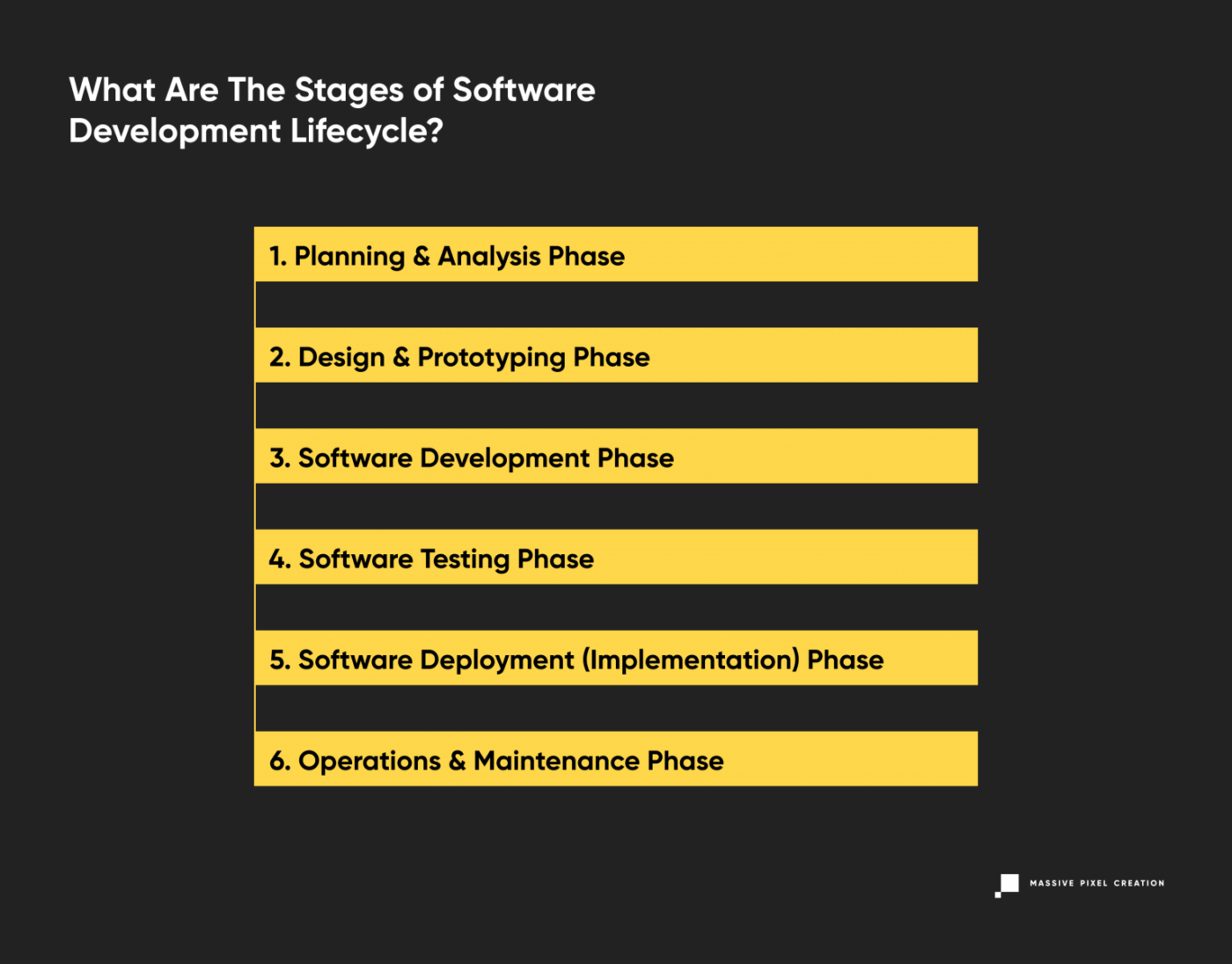
Let’s review the traditional distinct work phases of the entire SDLC process.
1. Planning & Analysis Phase
Careful planning and requirement analysis are crucial in delivering great software. At this stage, the customer works together with the software house team to create a detailed scope of the project and calculate the time and resources needed.
A mutual understanding of the product’s features, benchmarks, and goals can be achieved in a number of ways, including workshops, market surveys, expert consultations, stakeholders’ feedback, and more. At this moment, other guidelines are planned as well, such as quality assurance requirements, risk identification, technical scope, production environment, and others.
The result? The team gets a first insight into their future work, while the customer has a clear view of the product’s scope and expected outcomes. Most models use this stage as a starting point and later adjust the tasks to current needs. Agile methodologies have mastered this process, dividing the development time into short increments that involve a specific scope of work established right before the start.
2. Design & Prototyping Phase
The design phase involves much more than just product designers’ jobs. In software development, it’s equally important to create the visual aspect of the end product (the ‘traditional’ perception of design) and the overall system architecture behind it.
Based on the requirements gathered in the previous stage, the software house team now works on designing the product’s structure, including the communication between the elements, data flow, and optional third-party modules. The architecture is created strictly in line with the software requirement specification as well as the deadline and budget constraints determined earlier.
At the same time, the product design team works on wireframes that act as a reference point for the development team and the client. Some SDLC methodologies use rapid prototyping to achieve optimal results that can later be iterated (more on this later). Wireframes and prototypes help the development teams meet customer expectations and move through development faster. They’re a great way of getting early feedback and delivering an MVP version of the future product. Later on, the MVP may be shaped and changed according to new requirements and details.
3. Software Development Phase
Most likely the longest part of the SDLC process, the software development stage requires the most involvement from the development teams and results in a working product including all the pre-agreed features.
The actual development is performed according to the software requirement specification and the wireframes & guidelines established in the design phase. If it wasn’t done at the requirement analysis phase, the entire development process starts with translating the outcomes of both previous stages into an initial set of assignments. Then, the project manager assigns due dates and work schedules for transparency. As the development proceeds, these assignments may change, as the product is delivered according to current business goals or user feedback.
The team rarely uses just one programming language. Most often, it’s a group of software engineers with various skills and experience (a cross-functional team) using a number of programming tools dedicated for delivering specific results. This approach helps to produce high-quality software that meets all business requirements. On top of that, software houses have a set of their own guidelines, standards, and tools to create software. The development team is also supported by tech leaders, project managers, and other roles that help with any bumps in the road.
4. Software Testing Phase
The code is released into a testing environment. The quality assurance team takes over to look for bugs, omissions, and other red flags inside the software. Once again, they check all features against the customer’s expectations and verify the software requirement specification.
Bugs and defects are a normal part of each development process, so you shouldn’t be alarmed by their presence. The software testing phase is designed to provide the highest possible quality in all fields: that’s why the team takes many different user scenarios under consideration and meticulously checks for all options possible. During this SDLC process, the code will probably go back and forth between the developers and QAs until it’s pixel-perfect, stable, and in line with the business requirements. If it’s meant to be combined with third-party software products, the quality assurance team will check for that as well.

The process of software testing involves all sorts of different tests, both automated and manual, like penetration tests, end-to-end tests, validation tests, and more.
Depending on the chosen SDLC model, the testing phase may occur all at once, after delivering the entire code, or interchangeably, in little increments, as more and more features are added to the software. Agile methodologies will lean towards testing during each sprint or release – more on that below.
5. Software Deployment (Implementation) Phase
It’s time to pop that champagne – the code now meets the pre-agreed software specifications! A completely developed product is ready for release to the market and deployed to the production environment. Larger products will require integrating with pre-existing systems. Developers will take one final look at the implemented system, and may work together with QAs and content writers to produce detailed documentation for it.
This stage also involves arranging an infrastructure that’ll support the new product, establishing the server and hosting provider, and creating a strategy for future deployments with product updates.
6. Operations & Maintenance Phase
The system development process is never finished. With time, unexpected bugs can be detected, upgrades may be needed, and feature enhancements might be in order. As the product is now live, the team may observe performance issues or room for improvement.
It’s wise to monitor and review the network performance, environment’s stability, and the product’s behavior after the release. As the product is moved to the final environment and tested by end-users, it needs to remain stable and fast-running. Taking this step leads to faster problem-solving and issue management in case of any changes or critical issues.
The maintenance phase is crucial to meet the ever-changing business requirements, performance standards, and user expectations. It can involve extra development work or code alterations, as well as QA input.
Other Phases
Like I said at the beginning of this section, it’s impossible to pinpoint exactly one ‘proper’ process of software development life cycle. SDLC is a guide, and depending on the project’s specification, scope, and software organization, the software development company may omit some of the phases, merge, or split them into smaller sections as needed. For example, the analysis phase may be divided into business, technical, and other aspects.
In some SDLC process models, like the Agile method, the phases like development and software testing will concur to ensure rapid application development. In others, like the waterfall model, they’ll happen one after another, linearly.
Software Development Process: The Reality
Still thinking of that roadmap comparison from the section above and wondering how this checks out if there are so many variants? You should know that SDLC is not a plan. It’s a tool that you can adjust to your current needs. A traditional perception of planning is rather stiff and leaves no wiggle room, with steps carefully taken one after the other. Most software development methodologies stay away from that concept, as it can be quite binding and unfruitful.
In the next part of this article, we’ll cover the most popular SDLC models and methodologies and explain the core differences between them.
Software Development Lifecycle Models
The number of methods is nearly infinite when it comes to the models of software development life cycle. SDLC methodology allows for a lot of flexibility, and with new ideas and methods of software development, the struggle with choosing the right provider is real.
In this article, I’ll describe these software application development methods that you’ll most likely stumble across when searching for the company to build your product.
Waterfall Life Cycle Model
Perhaps the earliest of all SDLC models, the waterfall model uses all standard phases of software development, putting an emphasis on the planning stage and detailed documentation. Its traditional perception of product development translates to sequential phases that don’t overlap. You may think of it as a ‘production line’ in a ‘software development factory’, where a part of the product is constructed and then passed on.
This model is easy to understand, plan out, and implement, however, as each phase depends on the execution and delivery of the previous one, the entire project is likely to be overdue.
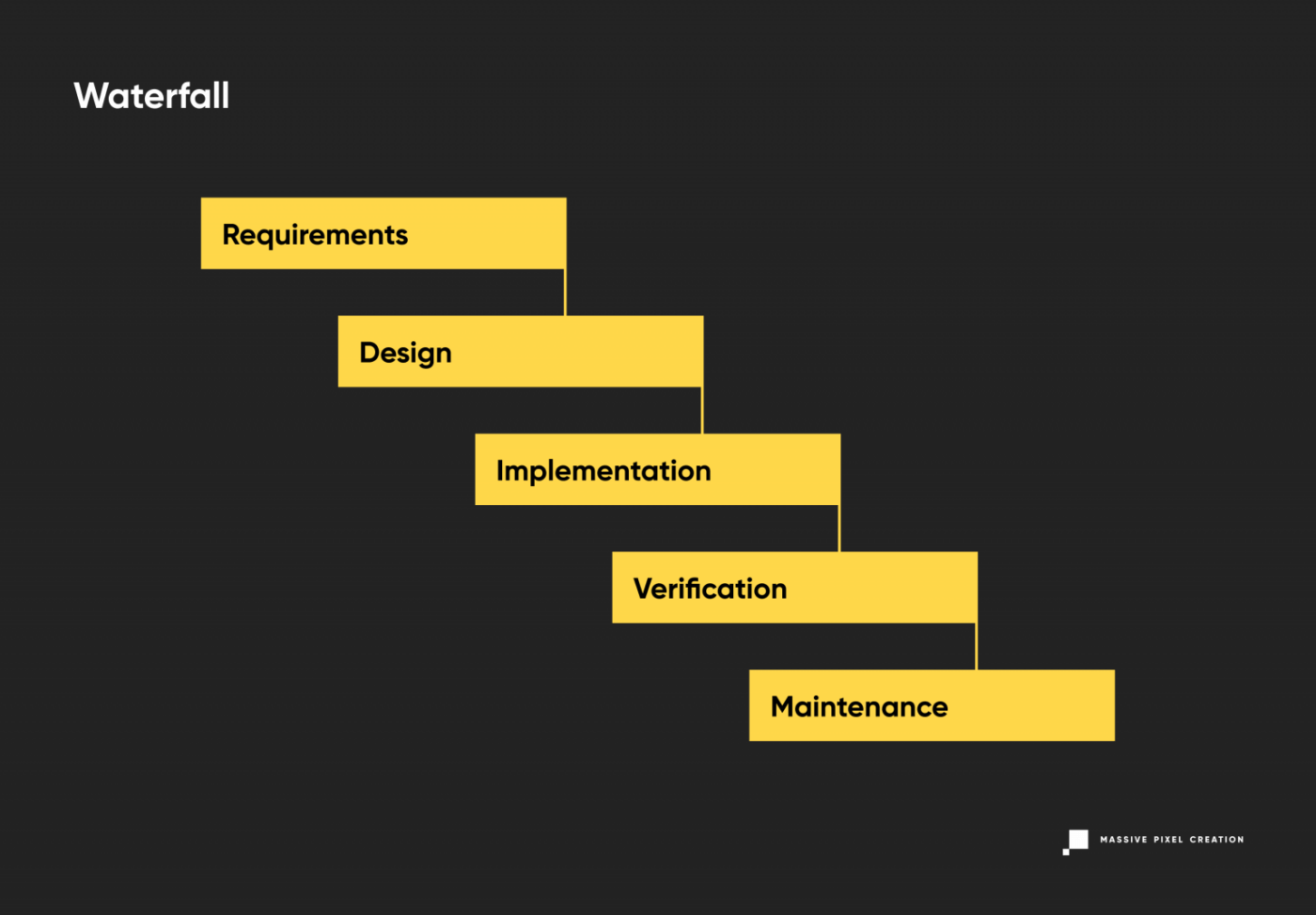
In the waterfall model, the progress flows in one direction and once you put it in motion, there’s a little chance of changing anything as you discover new requirements or constraints to the product. The decision was already made, and the shift will result in missed cost estimates and a ton of work going to waste.
On top of these risks, a significant drawback of the waterfall model is the fact that the end user won’t see a working product, or even a part of it, until very late in the process. This, combined with the high chance of missed deadlines and a long time passing between feasibility analysis and product release (eight to nine months in most scenarios), may result in a software that’s already obsolete when made available to the wide public.
Currently, software houses tend to use modified versions of this methodology, like Sashimi (Waterfall with Overlapping Phases) or Waterfall with Risk Reduction to minimize these uncertainties. Still, these models don’t answer many struggles of modern software development.
Iterative Model
Contrary to the above, there’s not as much emphasis put on preliminary planning in this model of software development life cycle. The SDLC model called Iterative involves breaking a product down into small chunks (iterations) according to the current state of knowledge about the project. All of them go through the standard phases of software development (planning, design phase, software testing, and so on) quickly and are immediately deployed for transparent, tangible results.
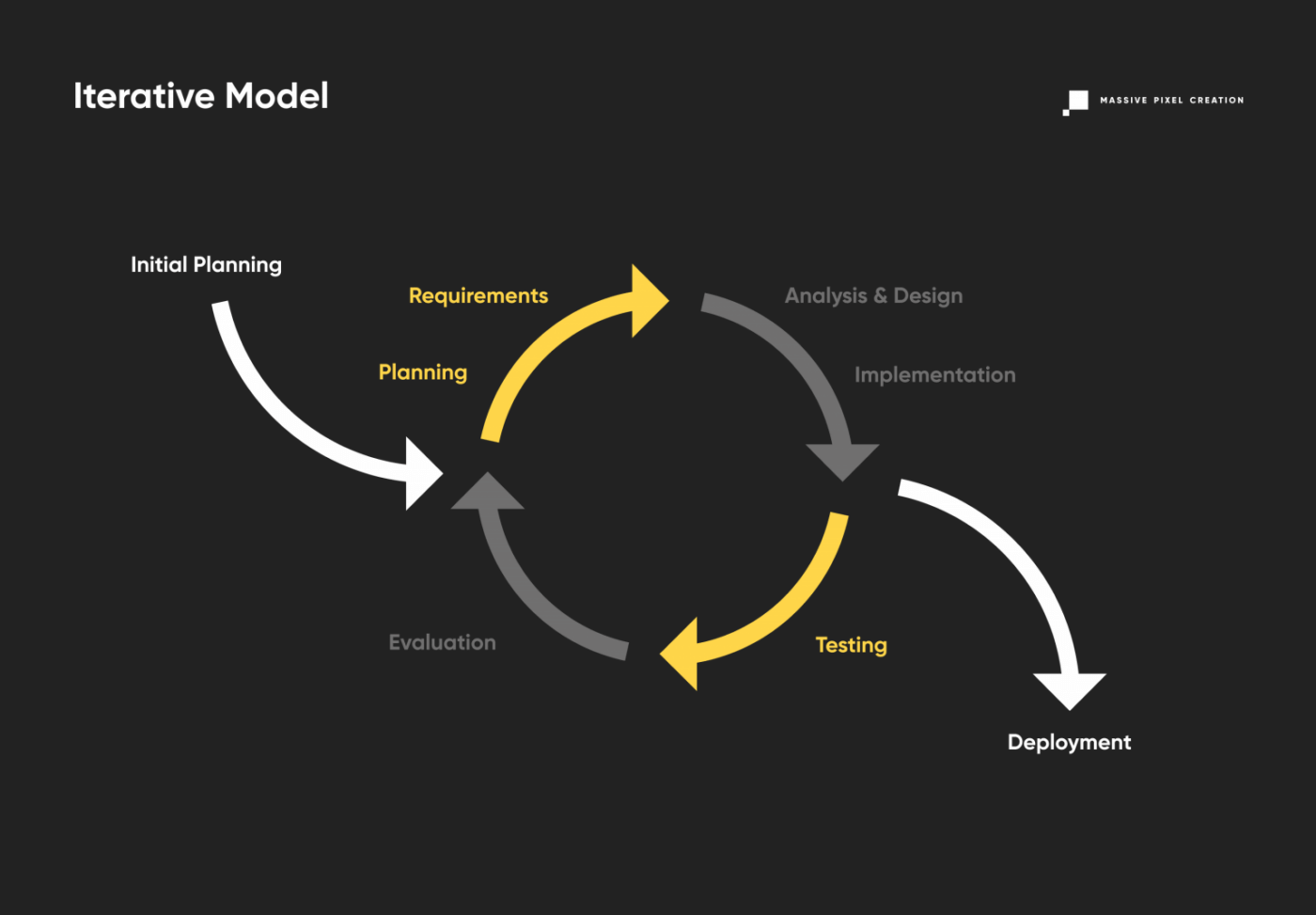
This way, users and clients can pin down the sections that need improvement, and send the product back for the next iteration of development, reducing costs. As the project progresses and more data is discovered, the planning also adjusts to meet new challenges and constraints, working in an iterative manner as well. The iterative SDLC model allows for slight changes to be made during the development, resulting in better market adjustment. Rapid prototyping can enhance client engagement and the feedback process. However, never-ending upgrades to the basic product can eat up resources and lead to out-of-scope software. This can be easily avoided by keeping your roadmap in mind.
Software Prototype Model
Not to be mixed with the iterative model, the software prototype involves fast prototyping of products that don’t have defined requirements. This variant of the software development lifecycle relies heavily on user feedback, as it pretty much construes the scope and details of the project. Therefore, it’s great for high-risk software industry projects with changing business requirements. What’s more, it can lead to huge budget savings, as you invest fewer resources and flaws are easy to locate and fix at an early stage.
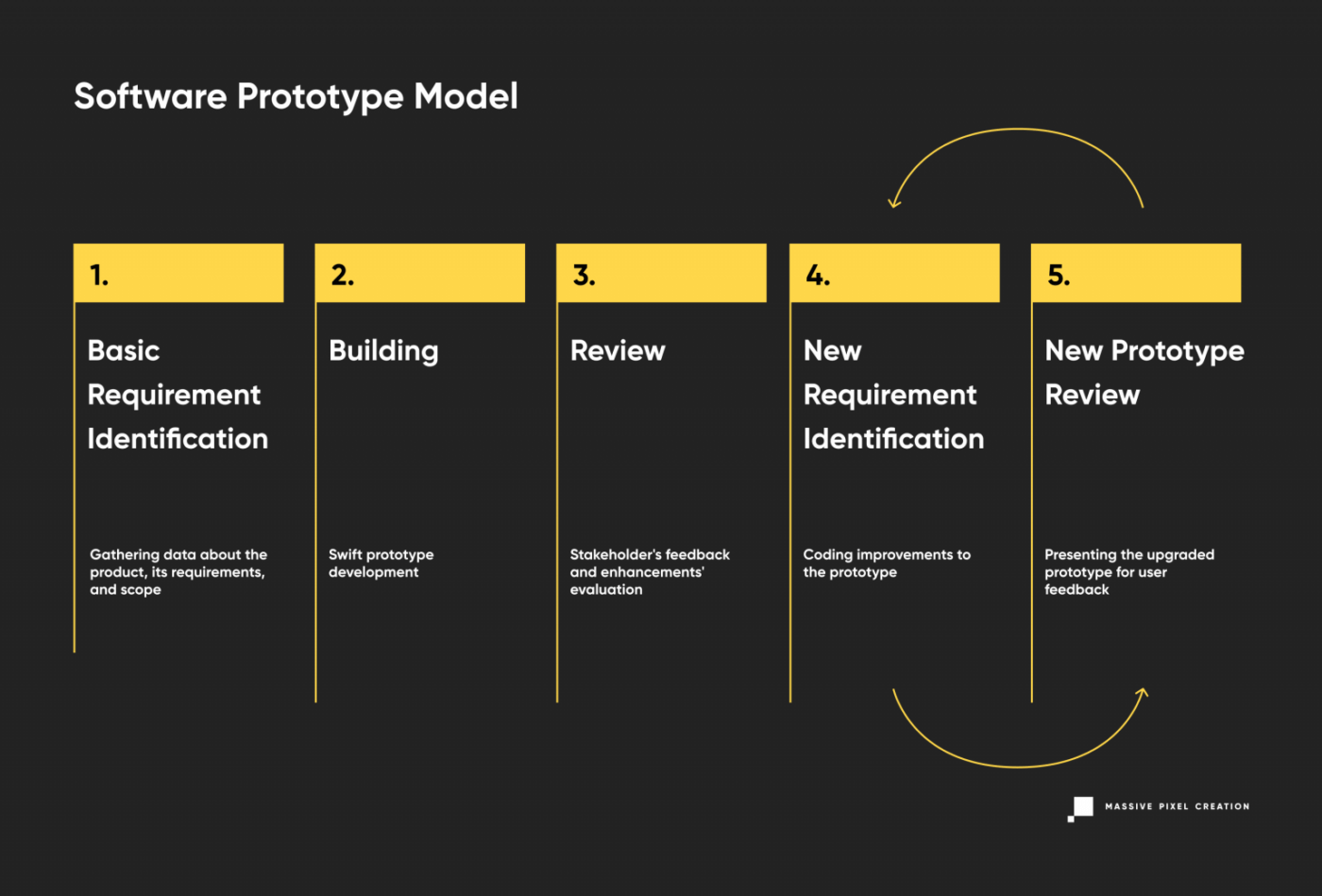
Software Prototype model is often subdivided into three types:
- Rapid prototyping (creating an MVP)
- Evolutionary (adjusting the product according to user feedback)
- Extreme prototyping (developing web applications in stages, starting with a static prototype and then moving on to simulated services and deployment).
However, this approach to software development isn’t risk-free. As the users’ needs can be easily changeable, it may take a long time to complete the ultimate version that pleases the stakeholders.
Spiral Model
The spiral model combines the best features of Waterfall and Prototype models to achieve fast application prototyping and advanced risk analysis. In this case, the team works on preliminary system architecture and design and delivers consecutive prototypes for stakeholders’ evaluation. Once a consensus has been reached, the final prototype is moved to the further stage and through the rest of the development cycles.
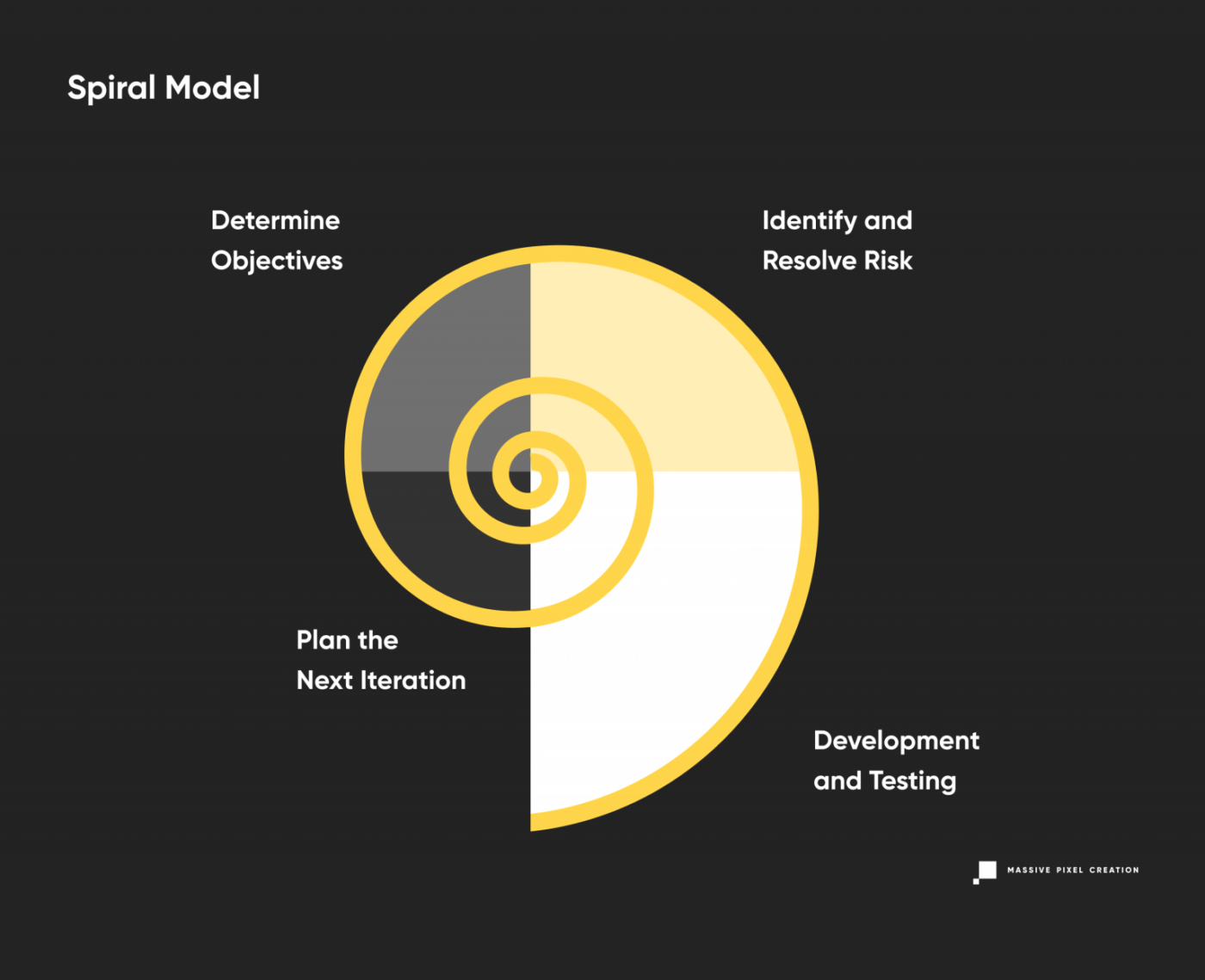
The spiral model enables thorough testing of each step, and even though requirements are set at the beginning, they can easily change with each iteration, reducing the business risk. Extra features may be added as needed, and continuous feedback makes this model more flexible than Waterfall. Still, you need to implement strict procedures to prevent endless spiraling and keep the clear image of the end product in mind.
V-Shaped Model
Yet another variation of the Waterfall model, the V-shaped model follows a parallel structure of tasks while keeping the traditional linear approach to software development. The emphasis is placed on the coextensive verification and validation phase, with coding right in the middle.
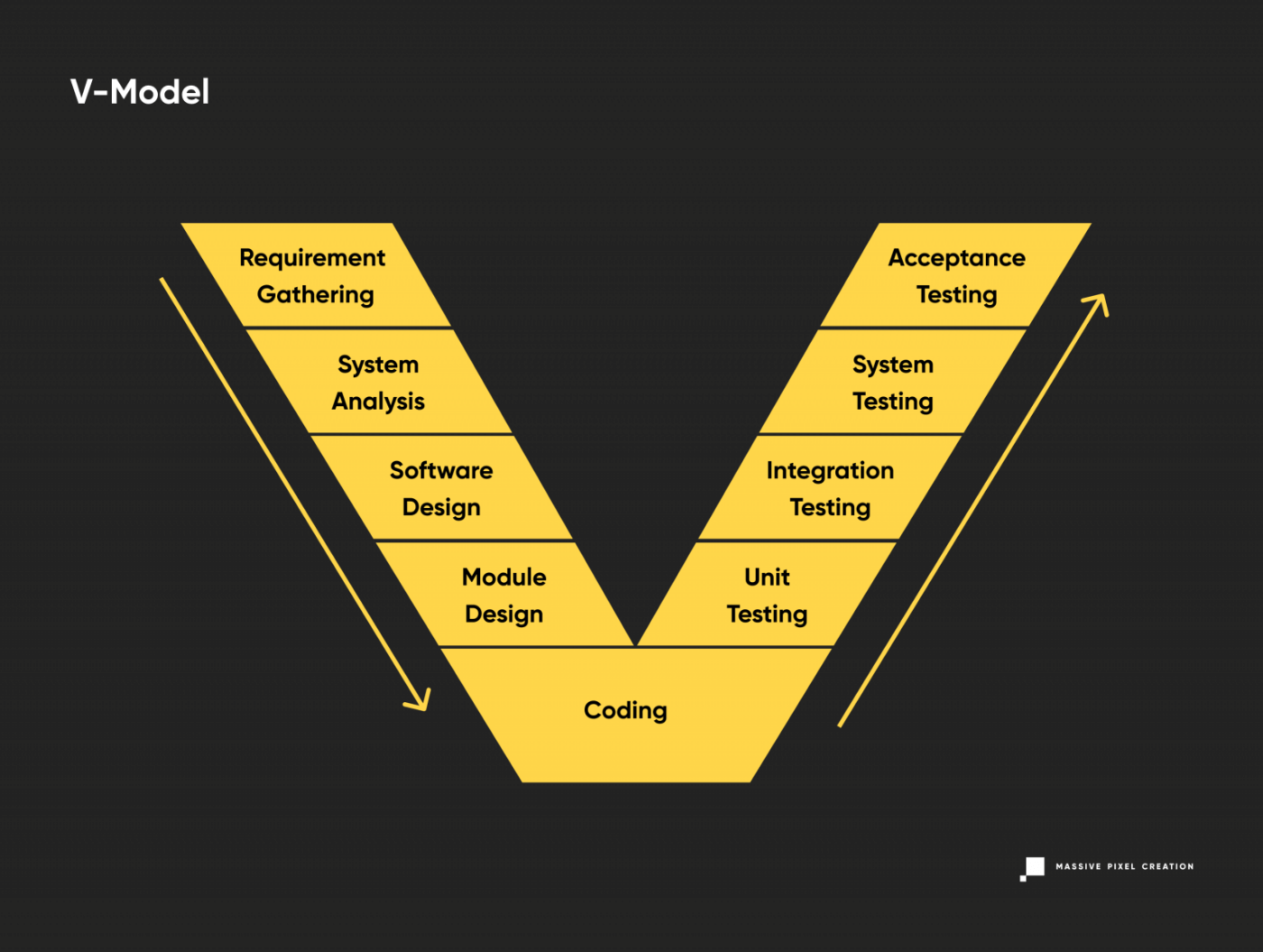
The robust validation phase ensures multi-level testing of all aspects of the newly-developed software. This leads to better risk management, however, its linear, disciplined progress makes it tough to introduce necessary changes at later stages. Also, working software shows up quite late in the cycle, so user feedback is harder to obtain.
This model works well for upgrading existing applications, but may not be so great for new projects that still have more question marks than actual, set-in-stone requirements.
Big Bang Model
The Big Bang Model may sound controversial, as its main characteristic is absolutely no planning. Instead, the team codes and tests as soon as they learn new requirements, which gives them a lot of flexibility, but may also bring unexpected changes and results into the project.
The Big Bang model is good for small projects with short (or unknown) deadlines and tiny teams. It works best when the job needs to be done fast, so every hour spent on planning seems like a waste of time.
As this approach can get quite messy, it’s best to use the Big Bang model with experienced, yet flexible team members (a cross-functional team) who can deliver results quickly and work with little to no input from the stakeholders. It’s also great for academic or practice projects.
Agile Life Cycle Model
The buzzword of modern-era software development, Agile methodologies are great for time-sensitive projects requiring a lot of user feedback. As it’s a disciplined process, many companies introduce roles like Scrum Master to ensure a well-organized, goal-oriented development model.
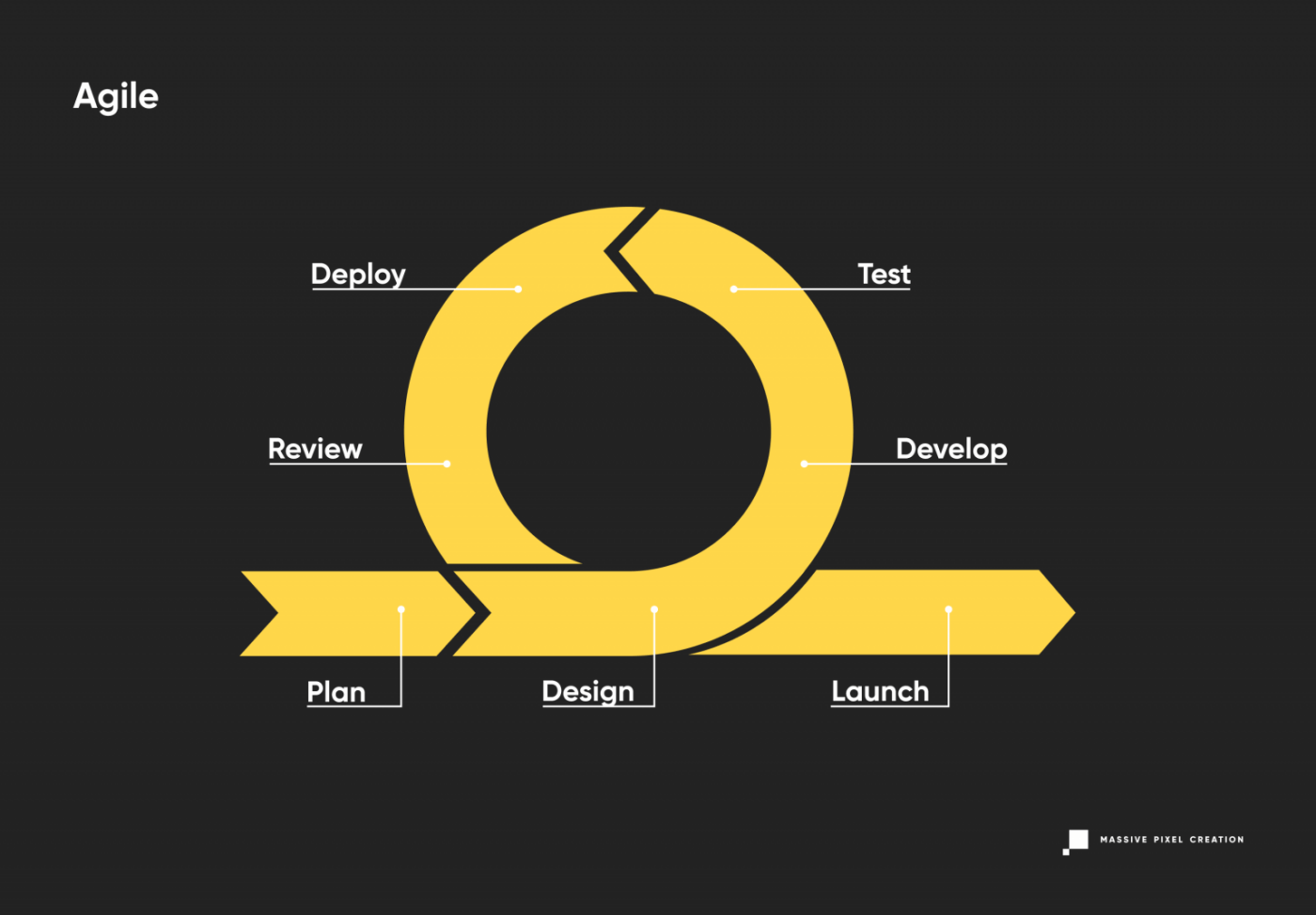
The Agile development model puts the customer first, accepting the inevitability of changes being made mid-project. It combines continuous iterating with robust testing for high quality of the end product and reduced risk; this philosophy divides the project into small sections of work lasting between 1 to 4 weeks.
Usually, if Scrum methodology is also used, each of these periods (called sprints) shares a pattern of kick-off meetings, planning, daily sync, release, and review. This way, the team and the client always have a clear understanding of the upcoming development phase and can adjust the conditions, scope, and process as they go.
The Agile model puts an emphasis on people and interactions between them, caring not only for the result, but also for the dynamics of the team and a clear communication between its members. This is a rare, yet valuable approach that helps to reduce communication gaps, misunderstandings, and time wasted on non-efficient problem reporting. It also ensures constant stakeholder engagement.
Models like XP (Extreme Programming) derive from Agile: XP focuses on the simplicity of development and often mixes the role of a developer and a tester. Another sub-model, Kanban, uses a special visual board to reduce the development time and improve the workflow. This method actually originated in Japanese manufacturing, where visual cues were implemented to prevent inventory pileup.
Other SDLC models
There are many models of software development life cycle. SDLC is a wide concept, and many companies and teams have introduced their own battle-tested methods based on hundreds of software development projects delivered.
Other popular SDLC models are:
- RAD (Rapid Application Development) model, which is similar to the Iterative model, but allows for separate deployment of each iteration;
- Dynamic System Development model, which derives from RAD, but focuses more on user involvement;
- FDD (Feature-Driven Development) model, which is a variant of the Iterative model that bases the project life cycle on features required for the end product;
- DevOps security model, which incorporates the Operations phase into the development loop for instant feedback during the design and implementation stage;
- Lean model, which focuses on easily-changeable software developed efficiently, with less workflow and a smaller budget.
How To Achieve High-Quality Software With SDLC
Regardless of the SDLC model, you choose, introducing some practices to your software development process will help you achieve high-quality results in a timely manner.
Team Communication
Highlighted in the Agile model, this really can’t be overemphasized. Each project will benefit from efficient team communication, as well as the relationship between the team and the customer. Even if you’re not a fan of Scrum or Kanban methodologies, get inspired by the wide pool of soft-skill tools they involve, like daily meetings or retrospective meetings that help solve problems and reduce hold-ups. These have all been battle-tested and bring real value to the project, even if they sound bizarre at first.
Transparency
Make sure that both parties stay on the same page at all times and speak about their expectations during each phase of software development. Let it be simple updates or complicated pivots – this easy rule is a real lifesaver and will cut you loads of extra time spent on fixing bugs and mistakes that weren’t communicated properly.

Continuous Integration
Patching different code snippets at the last minute will almost certainly result in missing deadlines and a lot of stress. Instead, implement continuous deployment and integrate each change into the system as soon as you deliver it to ensure total compatibility and reduce the risk of extra work needed to be done at the last stage.
Version Control
Better safe than sorry! Keep all the code secure and in a single location to prevent any leaks and chaos. Simple security measures such as encrypted Internet connection, logged access, and backup systems can go a long way if something goes wrong. Also, implement a change management system to track individual code input and keep safe, finalized versions of the product separately from unstable ones. Track changes carefully and allow your developers to collaborate on the same codebase.
Fruitful Partnership
Take some time to choose your software development outsourcing company carefully: look through online reviews, testimonials, and portfolios. You can also consider using a video testimonial software to access professional video testimonials – these can provide a more realistic feel for how past clients found their experiences.
Set your own set of expectations towards your partner (including budget and deadlines), and, above all, talk to your candidates!
SDLC: Key Takeaways
SDLC is an excellent way of running, analyzing, and improving the process of developing software. It guides you through all the phases of creating software, from planning to maintenance, and helps you pin down potential problems, hold-ups, and bottlenecks along the way, showing you how to fix them.
The basic SDLC process covers: planning & analysis, design & prototyping, development, testing, deployment, and operations & maintenance.
You can use a variety of models of tested software development life cycle. SDLC models include a traditional Waterfall model and more modern, flexible philosophies such as Agile methodology (with sub-methodologies like Scrum and Kanban that put more structure and detail to the process). Variations like Iterative, Prototype, Spiral, V-Shaped, and Big Bang fall in the middle, as they introduce more space for mid-project changes but are not as adaptable.
Each of these models has a wide portfolio of finished projects. Getting to know them closely will allow you to understand your project’s needs better and make an informed choice.
Creating An Effective Multistep Form For Better User Experience
Forms are already notoriously tough to customize and style — to the extent that we’re already starting to see new ideas for more flexible control. But what we don’t often discuss is designin
Javascript
Creating An Effective Multistep Form For Better User Experience
Amejimaobari Ollornwi
For a multistep form, planning involves structuring questions logically across steps, grouping similar questions, and minimizing the number of steps and the amount of required information for each step. Whatever makes each step focused and manageable is what should be aimed for.
In this tutorial, we will create a multistep form for a job application. Here are the details we are going to be requesting from the applicant at each step:
- Personal Information
Collects applicant’s name, email, and phone number. - Work Experience
Collects the applicant’s most recent company, job title, and years of experience. - Skills & Qualifications
The applicant lists their skills and selects their highest degree. - Review & Submit
This step is not going to collect any information. Instead, it provides an opportunity for the applicant to go back and review the information entered in the previous steps of the form before submitting it.
You can think of structuring these questions as a digital way of getting to know somebody. You can’t meet someone for the first time and ask them about their work experience without first asking for their name.
Based on the steps we have above, this is what the body of our HTML with our form should look like. First, the main <form> element:
<form id="jobApplicationForm"> <!-- Step 1: Personal Information --> <!-- Step 2: Work Experience --> <!-- Step 3: Skills & Qualifications --> <!-- Step 4: Review & Submit --> </form> Step 1 is for filling in personal information, like the applicant’s name, email address, and phone number:
<form id="jobApplicationForm"> <!-- Step 1: Personal Information --> <fieldset class="step" id="step-1"> <legend id="step1Label">Step 1: Personal Information</legend> <label for="name">Full Name</label> <input type="text" id="name" name="name" required /> <label for="email">Email Address</label> <input type="email" id="email" name="email" required /> <label for="phone">Phone Number</label> <input type="tel" id="phone" name="phone" required /> </fieldset> <!-- Step 2: Work Experience --> <!-- Step 3: Skills & Qualifications --> <!-- Step 4: Review & Submit --> </form> Once the applicant completes the first step, we’ll navigate them to Step 2, focusing on their work experience so that we can collect information like their most recent company, job title, and years of experience. We’ll tack on a new <fieldset> with those inputs:
<form id="jobApplicationForm"> <!-- Step 1: Personal Information --> <!-- Step 2: Work Experience --> <fieldset class="step" id="step-2" hidden> <legend id="step2Label">Step 2: Work Experience</legend> <label for="company">Most Recent Company</label> <input type="text" id="company" name="company" required /> <label for="jobTitle">Job Title</label> <input type="text" id="jobTitle" name="jobTitle" required /> <label for="yearsExperience">Years of Experience</label> <input type="number" id="yearsExperience" name="yearsExperience" min="0" required /> </fieldset> <!-- Step 3: Skills & Qualifications --> <!-- Step 4: Review & Submit --> </form> Step 3 is all about the applicant listing their skills and qualifications for the job they’re applying for:
<form id="jobApplicationForm"> <!-- Step 1: Personal Information --> <!-- Step 2: Work Experience --> <!-- Step 3: Skills & Qualifications --> <fieldset class="step" id="step-3" hidden> <legend id="step3Label">Step 3: Skills & Qualifications</legend> <label for="skills">Skill(s)</label> <textarea id="skills" name="skills" rows="4" required></textarea> <label for="highestDegree">Degree Obtained (Highest)</label> <select id="highestDegree" name="highestDegree" required> <option value="">Select Degree</option> <option value="highschool">High School Diploma</option> <option value="bachelor">Bachelor's Degree</option> <option value="master">Master's Degree</option> <option value="phd">Ph.D.</option> </select> </fieldset> <!-- Step 4: Review & Submit --> <fieldset class="step" id="step-4" hidden> <legend id="step4Label">Step 4: Review & Submit</legend> <p>Review your information before submitting the application.</p> <button type="submit">Submit Application</button> </fieldset> </form> And, finally, we’ll allow the applicant to review their information before submitting it:
<form id="jobApplicationForm"> <!-- Step 1: Personal Information --> <!-- Step 2: Work Experience --> <!-- Step 3: Skills & Qualifications --> <!-- Step 4: Review & Submit --> <fieldset class="step" id="step-4" hidden> <legend id="step4Label">Step 4: Review & Submit</legend> <p>Review your information before submitting the application.</p> <button type="submit">Submit Application</button> </fieldset> </form> Notice: We’ve added a hidden attribute to every fieldset element but the first one. This ensures that the user sees only the first step. Once they are done with the first step, they can proceed to fill out their work experience on the second step by clicking a navigational button. We’ll add this button later on.
Adding Styles
To keep things focused, we’re not going to be emphasizing the styles in this tutorial. What we’ll do to keep things simple is leverage the Simple.css style framework to get the form in good shape for the rest of the tutorial.
If you’re following along, we can include Simple’s styles in the document <head>:
<link rel="stylesheet" href="https://cdn.simplecss.org/simple.min.css" /> And from there, go ahead and create a style.css file with the following styles that I’ve folded up.
<details> <summary>View CSS</summary> body { min-height: 100vh; display: flex; align-items: center; justify-content: center; } main { padding: 0 30px; } h1 { font-size: 1.8rem; text-align: center; } .stepper { display: flex; justify-content: flex-end; padding-right: 10px; } form { box-shadow: 0px 0px 6px 2px rgba(0, 0, 0, 0.2); padding: 12px; } input, textarea, select { outline: none; } input:valid, textarea:valid, select:valid, input:focus:valid, textarea:focus:valid, select:focus:valid { border-color: green; } input:focus:invalid, textarea:focus:invalid, select:focus:invalid { border: 1px solid red; } </details> Form Navigation And Validation
An easy way to ruin the user experience for a multi-step form is to wait until the user gets to the last step in the form before letting them know of any error they made along the way. Each step of the form should be validated for errors before moving on to the next step, and descriptive error messages should be displayed to enable users to understand what is wrong and how to fix it.
Now, the only part of our form that is visible is the first step. To complete the form, users need to be able to navigate to the other steps. We are going to use several buttons to pull this off. The first step is going to have a Next button. The second and third steps are going to have both a Previous and a Next button, and the fourth step is going to have a Previous and a Submit button.
<form id="jobApplicationForm"> <!-- Step 1: Personal Information --> <fieldset> <!-- ... --> <button type="button" class="next" onclick="nextStep()">Next</button> </fieldset> <!-- Step 2: Work Experience --> <fieldset> <!-- ... --> <button type="button" class="previous" onclick="previousStep()">Previous</button> <button type="button" class="next" onclick="nextStep()">Next</button> </fieldset> <!-- Step 3: Skills & Qualifications --> <fieldset> <!-- ... --> <button type="button" class="previous" onclick="previousStep()">Previous</button> <button type="button" class="next" onclick="nextStep()">Next</button> </fieldset> <!-- Step 4: Review & Submit --> <fieldset> <!-- ... --> <button type="button" class="previous" onclick="previousStep()">Previous</button> <button type="submit">Submit Application</button> </fieldset> </form> Notice: We’ve added onclick attributes to the Previous and Next buttons to link them to their respective JavaScript functions: previousStep() and nextStep().
The “Next” Button
The nextStep() function is linked to the Next button. Whenever the user clicks the Next button, the nextStep() function will first check to ensure that all the fields for whatever step the user is on have been filled out correctly before moving on to the next step. If the fields haven’t been filled correctly, it displays some error messages, letting the user know that they’ve done something wrong and informing them what to do to make the errors go away.
Before we go into the implementation of the nextStep function, there are certain variables we need to define because they will be needed in the function. First, we need the input fields from the DOM so we can run checks on them to make sure they are valid.
// Step 1 fields const name = document.getElementById("name"); const email = document.getElementById("email"); const phone = document.getElementById("phone"); // Step 2 fields const company = document.getElementById("company"); const jobTitle = document.getElementById("jobTitle"); const yearsExperience = document.getElementById("yearsExperience"); // Step 3 fields const skills = document.getElementById("skills"); const highestDegree = document.getElementById("highestDegree"); Then, we’re going to need an array to store our error messages.
let errorMsgs = []; Also, we would need an element in the DOM where we can insert those error messages after they’ve been generated. This element should be placed in the HTML just below the last fieldset closing tag:
<div id="errorMessages" style="color: rgb(253, 67, 67)"></div> Add the above div to the JavaScript code using the following line:
const errorMessagesDiv = document.getElementById("errorMessages"); And finally, we need a variable to keep track of the current step.
let currentStep = 1;
Now that we have all our variables in place, here’s the implementation of the nextstep() function:
function nextStep() { errorMsgs = []; errorMessagesDiv.innerText = ""; switch (currentStep) { case 1: addValidationErrors(name, email, phone); validateStep(errorMsgs); break; case 2: addValidationErrors(company, jobTitle, yearsExperience); validateStep(errorMsgs); break; case 3: addValidationErrors(skills, highestDegree); validateStep(errorMsgs); break; } } The moment the Next button is pressed, our code first checks which step the user is currently on, and based on this information, it validates the data for that specific step by calling the addValidationErrors() function. If there are errors, we display them. Then, the form calls the validateStep() function to verify that there are no errors before moving on to the next step. If there are errors, it prevents the user from going on to the next step.
Whenever the nextStep() function runs, the error messages are cleared first to avoid appending errors from a different step to existing errors or re-adding existing error messages when the addValidationErrors function runs. The addValidationErrors function is called for each step using the fields for that step as arguments.
Here’s how the addValidationErrors function is implemented:
function addValidationErrors(fieldOne, fieldTwo, fieldThree = undefined) { if (!fieldOne.checkValidity()) { const label = document.querySelector(`label[for="${fieldOne.id}"]`); errorMsgs.push(`Please Enter A Valid ${label.textContent}`); } if (!fieldTwo.checkValidity()) { const label = document.querySelector(`label[for="${fieldTwo.id}"]`); errorMsgs.push(`Please Enter A Valid ${label.textContent}`); } if (fieldThree && !fieldThree.checkValidity()) { const label = document.querySelector(`label[for="${fieldThree.id}"]`); errorMsgs.push(`Please Enter A Valid ${label.textContent}`); } if (errorMsgs.length > 0) { errorMessagesDiv.innerText = errorMsgs.join("\n"); } } This is how the validateStep() function is defined:
function validateStep(errorMsgs) { if (errorMsgs.length === 0) { showStep(currentStep + 1); } } The validateStep() function checks for errors. If there are none, it proceeds to the next step with the help of the showStep() function.
function showStep(step) { steps.forEach((el, index) => { el.hidden = index + 1 !== step; }); currentStep = step; } The showStep() function requires the four fieldsets in the DOM. Add the following line to the top of the JavaScript code to make the fieldsets available:
const steps = document.querySelectorAll(".step"); What the showStep() function does is to go through all the fieldsets in our form and hide whatever fieldset is not equal to the one we’re navigating to. Then, it updates the currentStep variable to be equal to the step we’re navigating to.
The “Previous” Button
The previousStep() function is linked to the Previous button. Whenever the previous button is clicked, similarly to the nextStep function, the error messages are also cleared from the page, and navigation is also handled by the showStep function.
function previousStep() { errorMessagesDiv.innerText = ""; showStep(currentStep - 1); } Whenever the showStep() function is called with “currentStep - 1” as an argument (as in this case), we go back to the previous step, while moving to the next step happens by calling the showStep() function with “currentStep + 1” as an argument (as in the case of the validateStep() function).
Improving User Experience With Visual Cues
One other way of improving the user experience for a multi-step form, is by integrating visual cues, things that will give users feedback on the process they are on. These things can include a progress indicator or a stepper to help the user know the exact step they are on.
Integrating A Stepper
To integrate a stepper into our form (sort of like this one from Material Design), the first thing we need to do is add it to the HTML just below the opening <form> tag.
<form id="jobApplicationForm"> <div class="stepper"> <span><span class="currentStep">1</span>/4</span> </div> <!-- ... --> </form> Next, we need to query the part of the stepper that will represent the current step. This is the span tag with the class name of currentStep.
const currentStepDiv = document.querySelector(".currentStep"); Now, we need to update the stepper value whenever the previous or next buttons are clicked. To do this, we need to update the showStep() function by appending the following line to it:
currentStepDiv.innerText = currentStep; This line is added to the showStep() function because the showStep() function is responsible for navigating between steps and updating the currentStep variable. So, whenever the currentStep variable is updated, the currentStepDiv should also be updated to reflect that change.
Storing And Retrieving User Data
One major way we can improve the form’s user experience is by storing user data in the browser. Multistep forms are usually long and require users to enter a lot of information about themselves. Imagine a user filling out 95% of a form, then accidentally hitting the F5 button on their keyboard and losing all their progress. That would be a really bad experience for the user.
Using localStorage, we can store user information as soon as it is entered and retrieve it as soon as the DOM content is loaded, so users can always continue filling out their forms from wherever they left off. To add this feature to our forms, we can begin by saving the user’s information as soon as it is typed. This can be achieved using the input event.
Before adding the input event listener, get the form element from the DOM:
const form = document.getElementById("jobApplicationForm"); Now we can add the input event listener:
// Save data on each input event form.addEventListener("input", () => { const formData = { name: document.getElementById("name").value, email: document.getElementById("email").value, phone: document.getElementById("phone").value, company: document.getElementById("company").value, jobTitle: document.getElementById("jobTitle").value, yearsExperience: document.getElementById("yearsExperience").value, skills: document.getElementById("skills").value, highestDegree: document.getElementById("highestDegree").value, }; localStorage.setItem("formData", JSON.stringify(formData)); }); Next, we need to add some code to help us retrieve the user data once the DOM content is loaded.
window.addEventListener("DOMContentLoaded", () => { const savedData = JSON.parse(localStorage.getItem("formData")); if (savedData) { document.getElementById("name").value = savedData.name || ""; document.getElementById("email").value = savedData.email || ""; document.getElementById("phone").value = savedData.phone || ""; document.getElementById("company").value = savedData.company || ""; document.getElementById("jobTitle").value = savedData.jobTitle || ""; document.getElementById("yearsExperience").value = savedData.yearsExperience || ""; document.getElementById("skills").value = savedData.skills || ""; document.getElementById("highestDegree").value = savedData.highestDegree || ""; } }); Lastly, it is good practice to remove data from localStorage as soon as it is no longer needed:
// Clear data on form submit form.addEventListener('submit', () => { // Clear localStorage once the form is submitted localStorage.removeItem('formData'); }); Adding The Current Step Value To localStorage
If the user accidentally closes their browser, they should be able to return to wherever they left off. This means that the current step value also has to be saved in localStorage.
To save this value, append the following line to the showStep() function:
localStorage.setItem("storedStep", currentStep); Now we can retrieve the current step value and return users to wherever they left off whenever the DOM content loads. Add the following code to the DOMContentLoaded handler to do so:
const storedStep = localStorage.getItem("storedStep"); if (storedStep) { const storedStepInt = parseInt(storedStep); steps.forEach((el, index) => { el.hidden = index + 1 !== storedStepInt; }); currentStep = storedStepInt; currentStepDiv.innerText = currentStep; } Also, do not forget to clear the current step value from localStorage when the form is submitted.
localStorage.removeItem("storedStep"); The above line should be added to the submit handler.
Wrapping Up
Creating multi-step forms can help improve user experience for complex data entry. By carefully planning out steps, implementing form validation at each step, and temporarily storing user data in the browser, you make it easier for users to complete long forms.
For the full implementation of this multi-step form, you can access the complete code on GitHub.
(gg, yk)
How To Design For (And With) Deaf People
Practical UX guidelines to keep in mind for 466 million people who experience hearing loss. More design patterns in Smart Interface Design Patterns, a friendly video course on UX and design patterns b
Accessibility
How To Design For (And With) Deaf People
Vitaly Friedman
When we think about people who are deaf, we often assume stereotypes, such as “disabled” older adults with hearing aids. However, this perception is far from the truth and often leads to poor decisions and broken products.
Let’s look at when and how deafness emerges, and how to design better experiences for people with hearing loss.
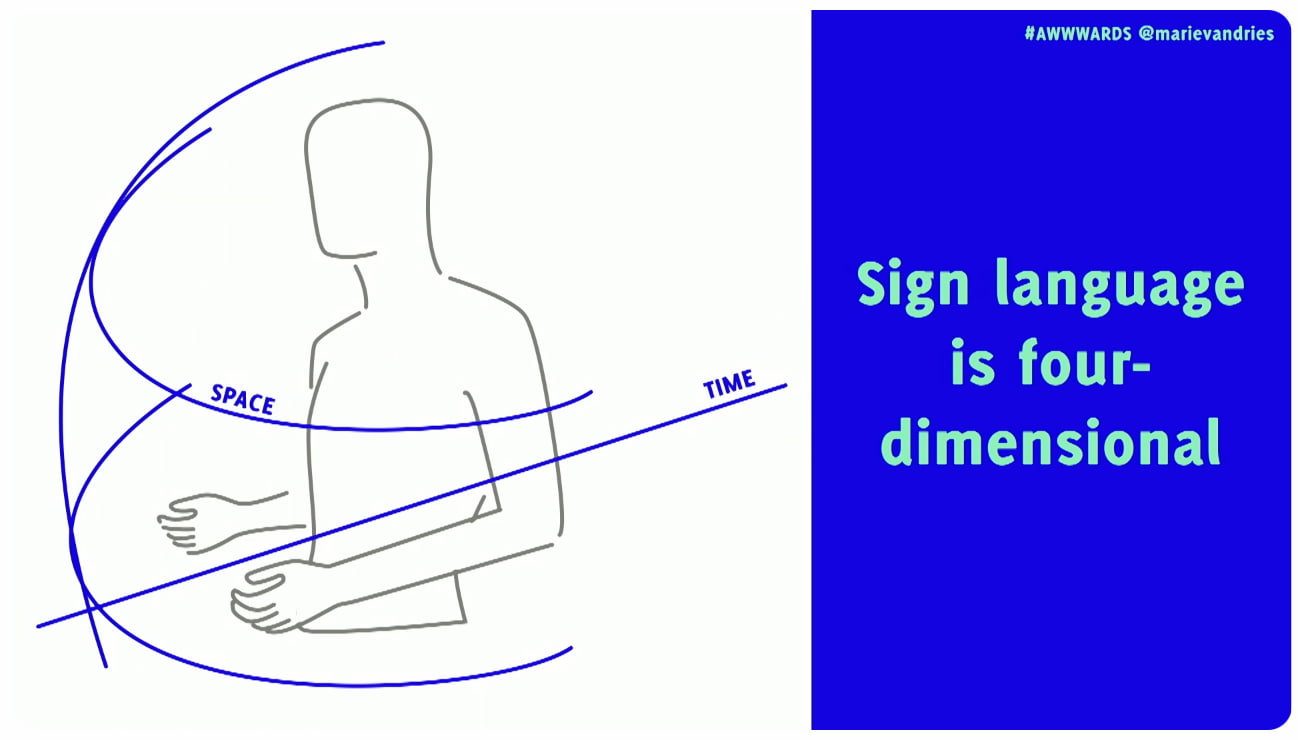
Deafness Is A Spectrum
Deafness spans a broad continuum, from minor to profound hearing loss. Around 90–95% of deaf people come from hearing families, and deafness often isn’t merely a condition that people are born with. It frequently occurs due to exposure to loud noises, and it also emerges with age, disease, and accidents.

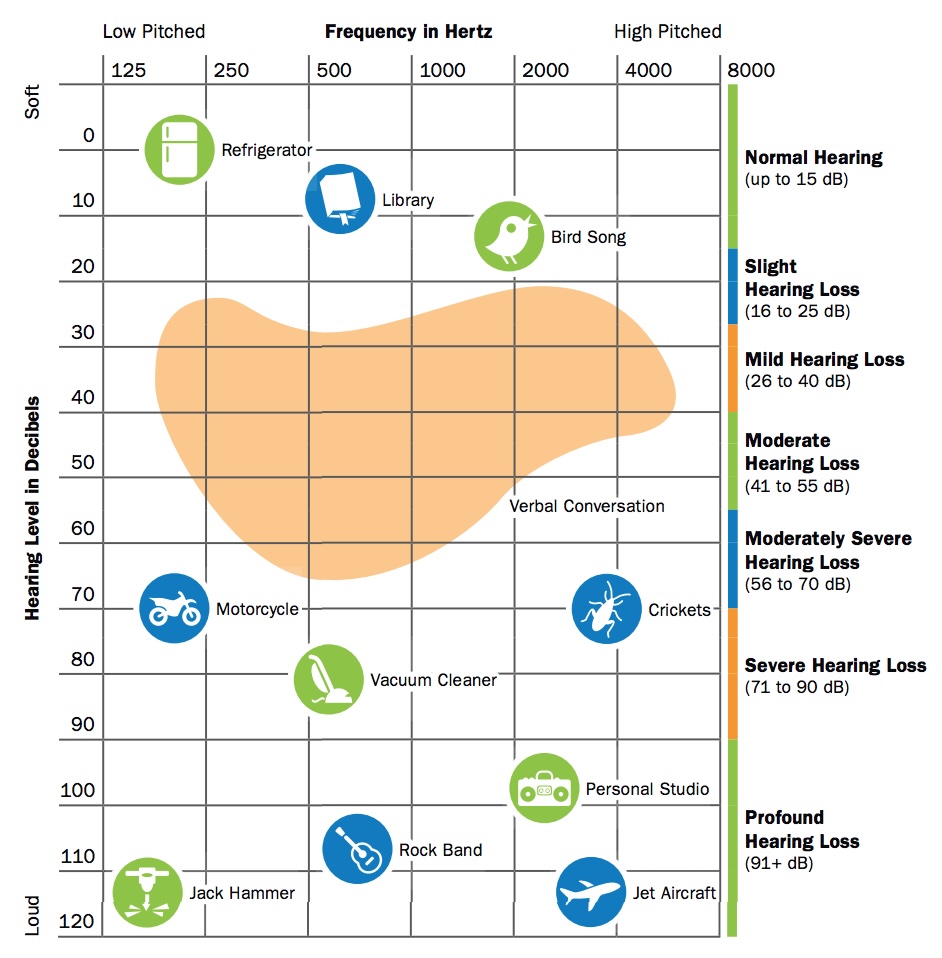
The loudness of sound is measured in units called decibels (dB). Everybody is on the spectrum of deafness, from normal hearing (up to 15 dB) to profound hearing loss (91+ dB):
- Slight Hearing Loss, 16–25 dB
At 16 dB hearing loss, a person can miss up to 10% of speech when a speaker is at a distance greater than 3 feet. - Mild hearing loss, 26–40 dB
Soft sounds are hard to hear, including whispering, which is around 40 dB in volume. It’s more difficult to hear soft speech sounds spoken at a normal volume. At 40dB hearing loss, a person may miss 50% of meeting discussions. - Moderate hearing loss, 41–55 dB
A person may hear almost no speech when another person is talking at normal volume. At a 50dB hearing loss, a person may not pick up to 80% of speech. - Moderately Severe Hearing Loss, 56–70 dB
A person may have problems hearing the sounds of a dishwasher (60dB). At 70 dB, they might miss almost all speech. - Severe Hearing Loss, 71–90 dB
A person will hear no speech when a person is talking at a normal level. They may hear only some very loud noises: vacuum (70 dB), blender (78 dB), hair dryer (90 dB). - Profound Hearing Loss, 91+ dB
Hear no speech and at most very loud sounds such as a music player at full volume (100 dB), which would be damaging for people with normal hearing, or a car horn (110 dB).
It’s worth mentioning that loss of hearing can also be situational and temporary, as people with “normal” hearing (0 to 25 dB hearing loss) will always encounter situations where they can’t hear, e.g., due to noisy environments.
Useful Things To Know About Deafness
Assumptions are always dangerous, and in the case of deafness, there are quite a few that aren’t accurate. For example, most deaf people actually do not know a sign language — it’s only around 1% in the US.
Also, despite our expectations, there is actually no universal sign language that everybody uses. For example, British signers often cannot understand American signers. There are globally around 300 different sign languages actively used.
“We never question making content available in different written or spoken languages, and the same should apply to signed languages.”

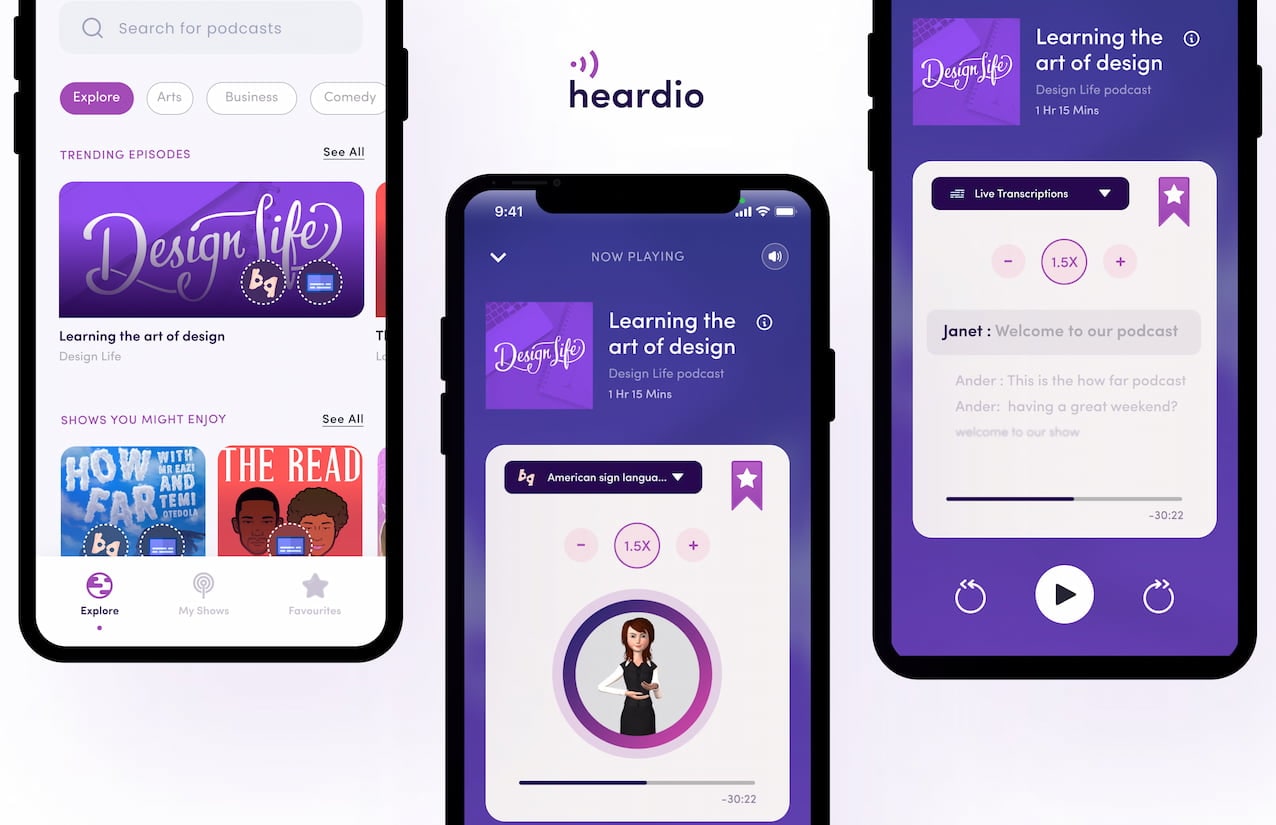
Sign languages are not just gestures or pantomime. They are 4D spatial languages with their own grammar and syntax, separate from spoken languages, and they don’t have a written form. They rely heavily on facial expression to convey meaning and emphasis. And they are also not universal — every country has its own sign language and dialects.
- You can only understand 30% of words via lip-reading.
- Most deaf people do not know any sign language.
- Many sign languages have local dialects that can be hard to interpret.
- Not all deaf people are fluent signers and often rely on visual clues.
- For many deaf people, a spoken language is their second language.
- Sign language is 4-dimensional, incorporating 3D space, time and also facial expressions.
How To Communicate Respectfully
Keep in mind that many deaf people use the spoken language of their country as their second language. So to communicate with a deaf person, it’s best to ask in writing. Don’t ask how much a person can understand, or if they can lip-read you.
However, as Rachel Edwards noted, don’t assume someone is comfortable with written language because they are deaf. Sometimes their literacy may be low, and so providing information as text and assuming that covers your deaf users might not be the answer.
Also, don’t assume that every deaf person can lip-read. You can see only about 30% of words on someone’s mouth. That’s why many deaf people need additional visual cues, like text or cued speech.

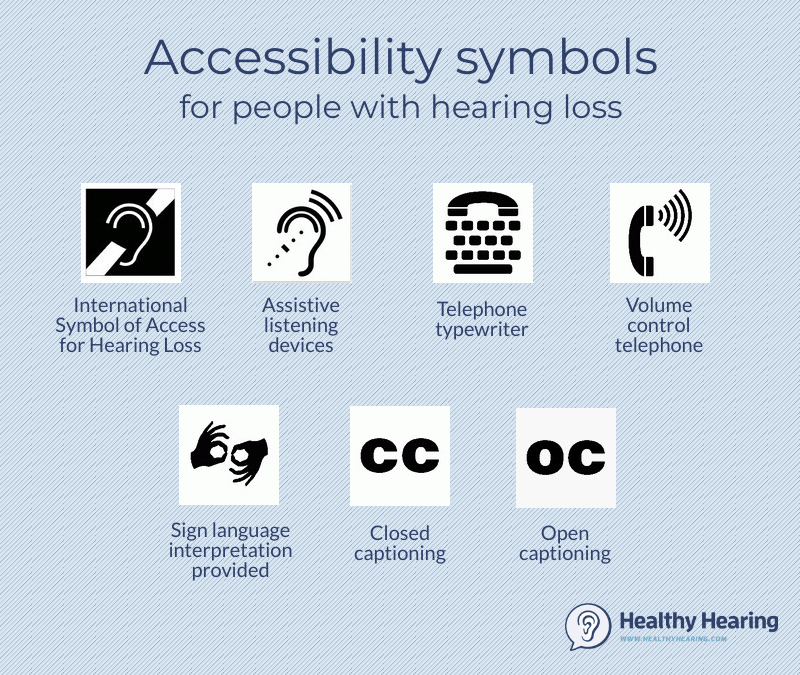
It’s also crucial to use respectful language. Deaf people do not always see themselves as disabled, but rather as a cultural linguistic minority with a unique identity. Others, as Meryl Evan has noted, don’t identify as deaf or hard of hearing, but rather as “hearing impaired”. So, it’s mostly up to an individual how they want to identify.
- Deaf (Capital ‘D’)
Culturally Deaf people who have been deaf since birth or before learning to speak. Sign language is often the first language, and written language is the second. - deaf (Lowercase ‘d’)
People who developed hearing loss later in life. Used by people who feel closer to the hearing/hard-of-hearing world and prefer to communicate written and/or oral. - Hard of Hearing
People with mild to moderate hearing loss who typically communicate orally and use hearing aids.
In general, avoid hearing impairment if you can, and use Deaf (for those deaf for most of their lives), deaf (for those who became deaf later), or hard of hearing (HoH) for partial hearing loss. But either way, ask politely first and then respect the person’s preferences.
Practical UX Guidelines
When designing UIs and content, consider these key accessibility guidelines for deaf and hard-of-hearing users:


- Don’t make the phone required or the only method of contact.
- Provide text alternatives for all audible alerts or notices.
- Add haptic feedback on mobile (e.g., vibration patterns).
- Ensure good lighting to help people see facial expressions.
- Circular seating usually works better, so everyone can see each other’s faces.
- Always include descriptions of non-spoken sounds (e.g., rain, laughter) in your content.
- Add a transcript and closed captions for audio and video.
- Clearly identify each speaker in all audio and video content.
- Design multiple ways to communicate in every instance (online + in-person).
- Invite video participants to keep the camera on to facilitate lip-reading and the viewing of facial expressions, which convey tone.
- Always test products with the actual community, instead of making assumptions for them.
Wrapping Up
I keep repeating myself like a broken record, but better accessibility always benefits everyone. When we improve experiences for some groups of people, it often improves experiences for entirely different groups as well.
As Marie Van Driessche rightfully noted, to design a great experience for accessibility, we must design with people, rather than for them. And that means always include people with lived experience of exclusion into the design process — as they are the true experts.
Accessibility never happens by accident — it’s a deliberate decision and a commitment.
“
No digital product is neutral. There must be a deliberate effort to make products and services more accessible. Not only does it benefit everyone, but it also shows what a company stands for and values.
And once you do have a commitment, it will be so much easier to retain accessibility rather than adding it last minute as a crutch — when it’s already too late to do it right and way too expensive to do it well.
Meet “Smart Interface Design Patterns”
You can find more details on design patterns and UX in Smart Interface Design Patterns, our 15h-video course with 100s of practical examples from real-life projects — with a live UX training later this year. Everything from mega-dropdowns to complex enterprise tables — with 5 new segments added every year. Jump to a free preview. Use code BIRDIE to save 15% off.
Video + UX Training
$ 495.00 $ 699.00 Get Video + UX Training
25 video lessons (15h) + Live UX Training.
100 days money-back-guarantee.
Video only
$ 300.00$ 395.00
40 video lessons (15h). Updated yearly.
Also available as a UX Bundle with 2 video courses.
Useful Resources
- Designing For Deaf People Helps Everyone, by Marie Van Driessche
- “Design considerations for the Deaf, deaf, and hard of hearing”, by Paul Roberts
- Beyond Video Captions and Sign Language, by Svetlana Kouznetsova
- “Best Practices For CC and Subtitles UX”, by Vitaly Friedman
- Web Accessibility for Deaf Users
- Inclusive Design Toolkit: Hearing
- “What It’s Like To Be Born Hard of Hearing”, by Twanna A. Hines, M.S.
- “Accessibility: Podcasts for the deaf”, by Mubarak Alabidun
Useful Books
- Sound Is Not Enough, by Svetlana Kouznetsova
- Mismatch: How Inclusion Shapes Design, by Kat Holmes
- Building for Everyone: Extend Your Product’s Reach Through Inclusive Design (+ free excerpt), by Annie Jean-Baptiste
(yk)
Building An Offline-Friendly Image Upload System
Poor internet connectivity doesn’t have to mean poor UX. With PWA technologies like IndexedDB, service workers, and the Background Sync API, you can build an offline-friendly image upload system tha
Javascript
Building An Offline-Friendly Image Upload System
Amejimaobari Ollornwi
So, you’re filling out an online form, and it asks you to upload a file. You click the input, select a file from your desktop, and are good to go. But something happens. The network drops, the file disappears, and you’re stuck having to re-upload the file. Poor network connectivity can lead you to spend an unreasonable amount of time trying to upload files successfully.
What ruins the user experience stems from having to constantly check network stability and retry the upload several times. While we may not be able to do much about network connectivity, as developers, we can always do something to ease the pain that comes with this problem.
One of the ways we can solve this problem is by tweaking image upload systems in a way that enables users to upload images offline — eliminating the need for a reliable network connection, and then having the system retry the upload process when the network becomes stable, without the user intervening.
This article is going to focus on explaining how to build an offline-friendly image upload system using PWA (progressive web application) technologies such as IndexedDB, service workers, and the Background Sync API. We will also briefly cover tips for improving the user experience for this system.
Planning The Offline Image Upload System
Here’s a flow chart for an offline-friendly image upload system.

As shown in the flow chart, the process unfolds as follows:
- The user selects an image.
The process begins by letting the user select their image. - The image is stored locally in
IndexedDB.
Next, the system checks for network connectivity. If network connectivity is available, the system uploads the image directly, avoiding unnecessary local storage usage. However, if the network is not available, the image will be stored inIndexedDB. - The service worker detects when the network is restored.
With the image stored inIndexedDB, the system waits to detect when the network connection is restored to continue with the next step. - The background sync processes pending uploads.
The moment the connection is restored, the system will try to upload the image again. - The file is successfully uploaded.
The moment the image is uploaded, the system will remove the local copy stored inIndexedDB.
Implementing The System
The first step in the system implementation is allowing the user to select their images. There are different ways you can achieve this:
- You can use a simple
<input type="file">element; - A drag-and-drop interface.
I would advise that you use both. Some users prefer to use the drag-and-drop interface, while others think the only way to upload images is through the <input type="file"> element. Having both options will help improve the user experience. You can also consider allowing users to paste images directly in the browser using the Clipboard API.
Registering The Service Worker
At the heart of this solution is the service worker. Our service worker is going to be responsible for retrieving the image from the IndexedDB store, uploading it when the internet connection is restored, and clearing the IndexedDB store when the image has been uploaded.
To use a service worker, you first have to register one:
if ('serviceWorker' in navigator) { navigator.serviceWorker.register('/service-worker.js') .then(reg => console.log('Service Worker registered', reg)) .catch(err => console.error('Service Worker registration failed', err)); } Checking For Network Connectivity
Remember, the problem we are trying to solve is caused by unreliable network connectivity. If this problem does not exist, there is no point in trying to solve anything. Therefore, once the image is selected, we need to check if the user has a reliable internet connection before registering a sync event and storing the image in IndexedDB.
function uploadImage() { if (navigator.onLine) { // Upload Image } else { // register Sync Event // Store Images in IndexedDB } } Note: I’m only using the navigator.onLine property here to demonstrate how the system would work. The navigator.onLine property is unreliable, and I would suggest you come up with a custom solution to check whether the user is connected to the internet or not. One way you can do this is by sending a ping request to a server endpoint you’ve created.
Registering The Sync Event
Once the network test fails, the next step is to register a sync event. The sync event needs to be registered at the point where the system fails to upload the image due to a poor internet connection.
async function registerSyncEvent() { if ('SyncManager' in window) { const registration = await navigator.serviceWorker.ready; await registration.sync.register('uploadImages'); console.log('Background Sync registered'); } } After registering the sync event, you need to listen for it in the service worker.
self.addEventListener('sync', (event) => { if (event.tag === 'uploadImages') { event.waitUntil(sendImages()); } }); The sendImages function is going to be an asynchronous process that will retrieve the image from IndexedDB and upload it to the server. This is what it’s going to look like:
async function sendImages() { try { // await image retrieval and upload } catch (error) { // throw error } } Opening The Database
The first thing we need to do in order to store our image locally is to open an IndexedDB store. As you can see from the code below, we are creating a global variable to store the database instance. The reason for doing this is that, subsequently, when we want to retrieve our image from IndexedDB, we wouldn’t need to write the code to open the database again.
let database; // Global variable to store the database instance function openDatabase() { return new Promise((resolve, reject) => { if (database) return resolve(database); // Return existing database instance const request = indexedDB.open("myDatabase", 1); request.onerror = (event) => { console.error("Database error:", event.target.error); reject(event.target.error); // Reject the promise on error }; request.onupgradeneeded = (event) => { const db = event.target.result; // Create the "images" object store if it doesn't exist. if (!db.objectStoreNames.contains("images")) { db.createObjectStore("images", { keyPath: "id" }); } console.log("Database setup complete."); }; request.onsuccess = (event) => { database = event.target.result; // Store the database instance globally resolve(database); // Resolve the promise with the database instance }; }); } Storing The Image In IndexedDB
With the IndexedDB store open, we can now store our images.
Now, you may be wondering why an easier solution like
localStoragewasn’t used for this purpose.The reason for that is that
IndexedDBoperates asynchronously and doesn’t block the main JavaScript thread, whereaslocalStorageruns synchronously and can block the JavaScript main thread if it is being used.
Here’s how you can store the image in IndexedDB:
async function storeImages(file) { // Open the IndexedDB database. const db = await openDatabase(); // Create a transaction with read and write access. const transaction = db.transaction("images", "readwrite"); // Access the "images" object store. const store = transaction.objectStore("images"); // Define the image record to be stored. const imageRecord = { id: IMAGE_ID, // a unique ID image: file // Store the image file (Blob) }; // Add the image record to the store. const addRequest = store.add(imageRecord); // Handle successful addition. addRequest.onsuccess = () => console.log("Image added successfully!"); // Handle errors during insertion. addRequest.onerror = (e) => console.error("Error storing image:", e.target.error); } With the images stored and the background sync set, the system is ready to upload the image whenever the network connection is restored.
Retrieving And Uploading The Images
Once the network connection is restored, the sync event will fire, and the service worker will retrieve the image from IndexedDB and upload it.
async function retrieveAndUploadImage(IMAGE_ID) { try { const db = await openDatabase(); // Ensure the database is open const transaction = db.transaction("images", "readonly"); const store = transaction.objectStore("images"); const request = store.get(IMAGE_ID); request.onsuccess = function (event) { const image = event.target.result; if (image) { // upload Image to server here } else { console.log("No image found with ID:", IMAGE_ID); } }; request.onerror = () => { console.error("Error retrieving image."); }; } catch (error) { console.error("Failed to open database:", error); } } Deleting The IndexedDB Database
Once the image has been uploaded, the IndexedDB store is no longer needed. Therefore, it should be deleted along with its content to free up storage.
function deleteDatabase() { // Check if there's an open connection to the database. if (database) { database.close(); // Close the database connection console.log("Database connection closed."); } // Request to delete the database named "myDatabase". const deleteRequest = indexedDB.deleteDatabase("myDatabase"); // Handle successful deletion of the database. deleteRequest.onsuccess = function () { console.log("Database deleted successfully!"); }; // Handle errors that occur during the deletion process. deleteRequest.onerror = function (event) { console.error("Error deleting database:", event.target.error); }; // Handle cases where the deletion is blocked (e.g., if there are still open connections). deleteRequest.onblocked = function () { console.warn("Database deletion blocked. Close open connections and try again."); }; } With that, the entire process is complete!
Considerations And Limitations
While we’ve done a lot to help improve the experience by supporting offline uploads, the system is not without its limitations. I figured I would specifically call those out because it’s worth knowing where this solution might fall short of your needs.
- No Reliable Internet Connectivity Detection
JavaScript does not provide a foolproof way to detect online status. For this reason, you need to come up with a custom solution for detecting online status. - Chromium-Only Solution
The Background Sync API is currently limited to Chromium-based browsers. As such, this solution is only supported by Chromium browsers. That means you will need a more robust solution if you have the majority of your users on non-Chromium browsers. IndexedDBStorage Policies
Browsers impose storage limitations and eviction policies forIndexedDB. For instance, in Safari, data stored inIndexedDBhas a lifespan of seven days if the user doesn’t interact with the website. This is something you should bear in mind if you do come up with an alternative for the background sync API that supports Safari.
Enhancing The User Experience
Since the entire process happens in the background, we need a way to inform the users when images are stored, waiting to be uploaded, or have been successfully uploaded. Implementing certain UI elements for this purpose will indeed enhance the experience for the users. These UI elements may include toast notifications, upload status indicators like spinners (to show active processes), progress bars (to show state progress), network status indicators, or buttons to provide retry and cancel options.
Wrapping Up
Poor internet connectivity can disrupt the user experience of a web application. However, by leveraging PWA technologies such as IndexedDB, service workers, and the Background Sync API, developers can help improve the reliability of web applications for their users, especially those in areas with unreliable internet connectivity.
(gg, yk)
Creating The “Moving Highlight” Navigation Bar With JavaScript And CSS
In this tutorial, Blake Lundquist walks us through two methods of creating the “moving-highlight” navigation pattern using only plain JavaScript and CSS. The first technique uses the getBoundingCl
Javascript
Creating The “Moving Highlight” Navigation Bar With JavaScript And CSS
Blake Lundquist
I recently came across an old jQuery tutorial demonstrating a “moving highlight” navigation bar and decided the concept was due for a modern upgrade. With this pattern, the border around the active navigation item animates directly from one element to another as the user clicks on menu items. In 2025, we have much better tools to manipulate the DOM via vanilla JavaScript. New features like the View Transition API make progressive enhancement more easily achievable and handle a lot of the animation minutiae.

In this tutorial, I will demonstrate two methods of creating the “moving highlight” navigation bar using plain JavaScript and CSS. The first example uses the getBoundingClientRect method to explicitly animate the border between navigation bar items when they are clicked. The second example achieves the same functionality using the new View Transition API.
The Initial Markup
Let’s assume that we have a single-page application where content changes without the page being reloaded. The starting HTML and CSS are your standard navigation bar with an additional div element containing an id of #highlight. We give the first navigation item a class of .active.
See the Pen [Moving Highlight Navbar Starting Markup [forked]](https://codepen.io/smashingmag/pen/EajQyBW) by Blake Lundquist.
For this version, we will position the #highlight element around the element with the .active class to create a border. We can utilize absolute positioning and animate the element across the navigation bar to create the desired effect. We’ll hide it off-screen initially by adding left: -200px and include transition styles for all properties so that any changes in the position and size of the element will happen gradually.
#highlight { z-index: 0; position: absolute; height: 100%; width: 100px; left: -200px; border: 2px solid green; box-sizing: border-box; transition: all 0.2s ease; } Add A Boilerplate Event Handler For Click Interactions
We want the highlight element to animate when a user changes the .active navigation item. Let’s add a click event handler to the nav element, then filter for events caused only by elements matching our desired selector. In this case, we only want to change the .active nav item if the user clicks on a link that does not already have the .active class.
Initially, we can call console.log to ensure the handler fires only when expected:
const navbar = document.querySelector('nav'); navbar.addEventListener('click', function (event) { // return if the clicked element doesn't have the correct selector if (!event.target.matches('nav a:not(active)')) { return; } console.log('click'); }); Open your browser console and try clicking different items in the navigation bar. You should only see "click" being logged when you select a new item in the navigation bar.
Now that we know our event handler is working on the correct elements let’s add code to move the .active class to the navigation item that was clicked. We can use the object passed into the event handler to find the element that initialized the event and give that element a class of .active after removing it from the previously active item.
const navbar = document.querySelector('nav'); navbar.addEventListener('click', function (event) { // return if the clicked element doesn't have the correct selector if (!event.target.matches('nav a:not(active)')) { return; } - console.log('click'); + document.querySelector('nav a.active').classList.remove('active'); + event.target.classList.add('active'); }); Our #highlight element needs to move across the navigation bar and position itself around the active item. Let’s write a function to calculate a new position and width. Since the #highlight selector has transition styles applied, it will move gradually when its position changes.
Using getBoundingClientRect, we can get information about the position and size of an element. We calculate the width of the active navigation item and its offset from the left boundary of the parent element. Then, we assign styles to the highlight element so that its size and position match.
// handler for moving the highlight const moveHighlight = () => { const activeNavItem = document.querySelector('a.active'); const highlighterElement = document.querySelector('#highlight'); const width = activeNavItem.offsetWidth; const itemPos = activeNavItem.getBoundingClientRect(); const navbarPos = navbar.getBoundingClientRect() const relativePosX = itemPos.left - navbarPos.left; const styles = { left: `${relativePosX}px`, width: `${width}px`, }; Object.assign(highlighterElement.style, styles); } Let’s call our new function when the click event fires:
navbar.addEventListener('click', function (event) { // return if the clicked element doesn't have the correct selector if (!event.target.matches('nav a:not(active)')) { return; } document.querySelector('nav a.active').classList.remove('active'); event.target.classList.add('active'); + moveHighlight(); }); Finally, let’s also call the function immediately so that the border moves behind our initial active item when the page first loads:
// handler for moving the highlight const moveHighlight = () => { // ... } // display the highlight when the page loads moveHighlight(); Now, the border moves across the navigation bar when a new item is selected. Try clicking the different navigation links to animate the navigation bar.
See the Pen [Moving Highlight Navbar [forked]](https://codepen.io/smashingmag/pen/WbvMxqV) by Blake Lundquist.
That only took a few lines of vanilla JavaScript and could easily be extended to account for other interactions, like mouseover events. In the next section, we will explore refactoring this feature using the View Transition API.
Using The View Transition API
The View Transition API provides functionality to create animated transitions between website views. Under the hood, the API creates snapshots of “before” and “after” views and then handles transitioning between them. View transitions are useful for creating animations between documents, providing the native-app-like user experience featured in frameworks like Astro. However, the API also provides handlers meant for SPA-style applications. We will use it to reduce the JavaScript needed in our implementation and more easily create fallback functionality.
For this approach, we no longer need a separate #highlight element. Instead, we can style the .active navigation item directly using pseudo-selectors and let the View Transition API handle the animation between the before-and-after UI states when a new navigation item is clicked.
We’ll start by getting rid of the #highlight element and its associated CSS and replacing it with styles for the nav a::after pseudo-selector:
<nav> - <div id="highlight"></div> <a href="#" class="active">Home</a> <a href="#services">Services</a> <a href="#about">About</a> <a href="#contact">Contact</a> </nav> - #highlight { - z-index: 0; - position: absolute; - height: 100%; - width: 0; - left: 0; - box-sizing: border-box; - transition: all 0.2s ease; - } + nav a::after { + content: " "; + position: absolute; + left: 0; + top: 0; + width: 100%; + height: 100%; + border: none; + box-sizing: border-box; + } For the .active class, we include the view-transition-name property, thus unlocking the magic of the View Transition API. Once we trigger the view transition and change the location of the .active navigation item in the DOM, “before” and “after” snapshots will be taken, and the browser will animate the border across the bar. We’ll give our view transition the name of highlight, but we could theoretically give it any name.
nav a.active::after { border: 2px solid green; view-transition-name: highlight; } Once we have a selector that contains a view-transition-name property, the only remaining step is to trigger the transition using the startViewTransition method and pass in a callback function.
const navbar = document.querySelector('nav'); // Change the active nav item on click navbar.addEventListener('click', async function (event) { if (!event.target.matches('nav a:not(.active)')) { return; } document.startViewTransition(() => { document.querySelector('nav a.active').classList.remove('active'); event.target.classList.add('active'); }); }); Above is a revised version of the click handler. Instead of doing all the calculations for the size and position of the moving border ourselves, the View Transition API handles all of it for us. We only need to call document.startViewTransition and pass in a callback function to change the item that has the .active class!
Adjusting The View Transition
At this point, when clicking on a navigation link, you’ll notice that the transition works, but some strange sizing issues are visible.

This sizing inconsistency is caused by aspect ratio changes during the course of the view transition. We won’t go into detail here, but Jake Archibald has a detailed explanation you can read for more information. In short, to ensure the height of the border stays uniform throughout the transition, we need to declare an explicit height for the ::view-transition-old and ::view-transition-new pseudo-selectors representing a static snapshot of the old and new view, respectively.
::view-transition-old(highlight) { height: 100%; } ::view-transition-new(highlight) { height: 100%; } Let’s do some final refactoring to tidy up our code by moving the callback to a separate function and adding a fallback for when view transitions aren’t supported:
const navbar = document.querySelector('nav'); // change the item that has the .active class applied const setActiveElement = (elem) => { document.querySelector('nav a.active').classList.remove('active'); elem.classList.add('active'); } // Start view transition and pass in a callback on click navbar.addEventListener('click', async function (event) { if (!event.target.matches('nav a:not(.active)')) { return; } // Fallback for browsers that don't support View Transitions: if (!document.startViewTransition) { setActiveElement(event.target); return; } document.startViewTransition(() => setActiveElement(event.target)); }); Here’s our view transition-powered navigation bar! Observe the smooth transition when you click on the different links.
See the Pen [Moving Highlight Navbar with View Transition [forked]](https://codepen.io/smashingmag/pen/ogXELKE) by Blake Lundquist.
Conclusion
Animations and transitions between website UI states used to require many kilobytes of external libraries, along with verbose, confusing, and error-prone code, but vanilla JavaScript and CSS have since incorporated features to achieve native-app-like interactions without breaking the bank. We demonstrated this by implementing the “moving highlight” navigation pattern using two approaches: CSS transitions combined with the getBoundingClientRect() method and the View Transition API.
Resources
getBoundingClientRect()method documentation- View Transition API documentation
- “View Transitions: Handling Aspect Ratio Changes” by Jake Archibald
(gg, yk)
Freebie: “Modern Business” Infographic Elements
The landscape of business is constantly changing and so does the technology and marketing techniques involved. A lot more businesses are using the power of infographics to really reach out to their ta
FreebiesThe landscape of business is constantly changing and so does the technology and marketing techniques involved. A lot more businesses are using the power of infographics to really reach out to their target market.
If you’re a designer doing some work for businesses in all shapes and sizes, chances are you have probably gotten some free vectors, PSDs and the like from Freepik. After all, Freepik.com is one of the biggest sites on the web for you to search for free vectors, stocks photos, PSD files and even SVG icons.
Below, we have a special treat that’s been designed by Freepik, exclusively for our Hongkiat.com readers. This “Modern Business Infographic Elements” consists of 3D elements, device graphs, gradients and other cool elements for you to choose from.
Available in AI. and .EPS format, go ahead and take a look for yourself.

Download
Please enter your email address below and click the Download Files button. The download link will be sent to you by email.
The post Freebie: “Modern Business” Infographic Elements appeared first on Hongkiat.